Blender Virtual Camera
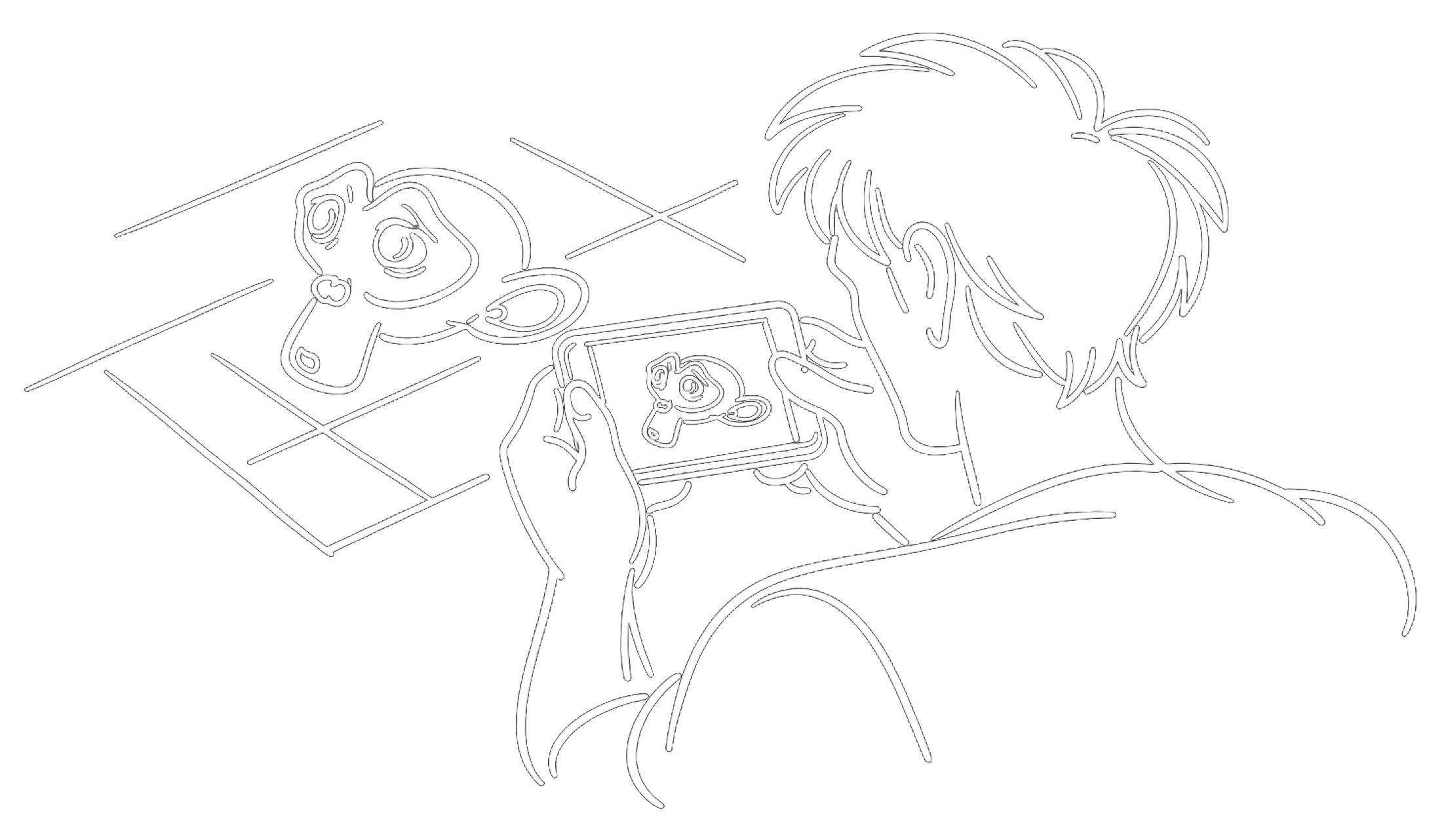
Connect Blender to Omniscient on your iPhone or iPad,then use the device as a live viewport or camera controller.
For features, plans and how it compares, see the virtual camera for Blender overview.
What you need
iPhone or iPad
Blender add-on
Omniscient Blender add-on v3.0 or newer.
Blender 4.2+
Open the scene you want to control before starting a Virtual Camera session.
Same network
Keep the iPhone or iPad and your computer on the same local network.
Quick start
Open Blender Virtual Camera
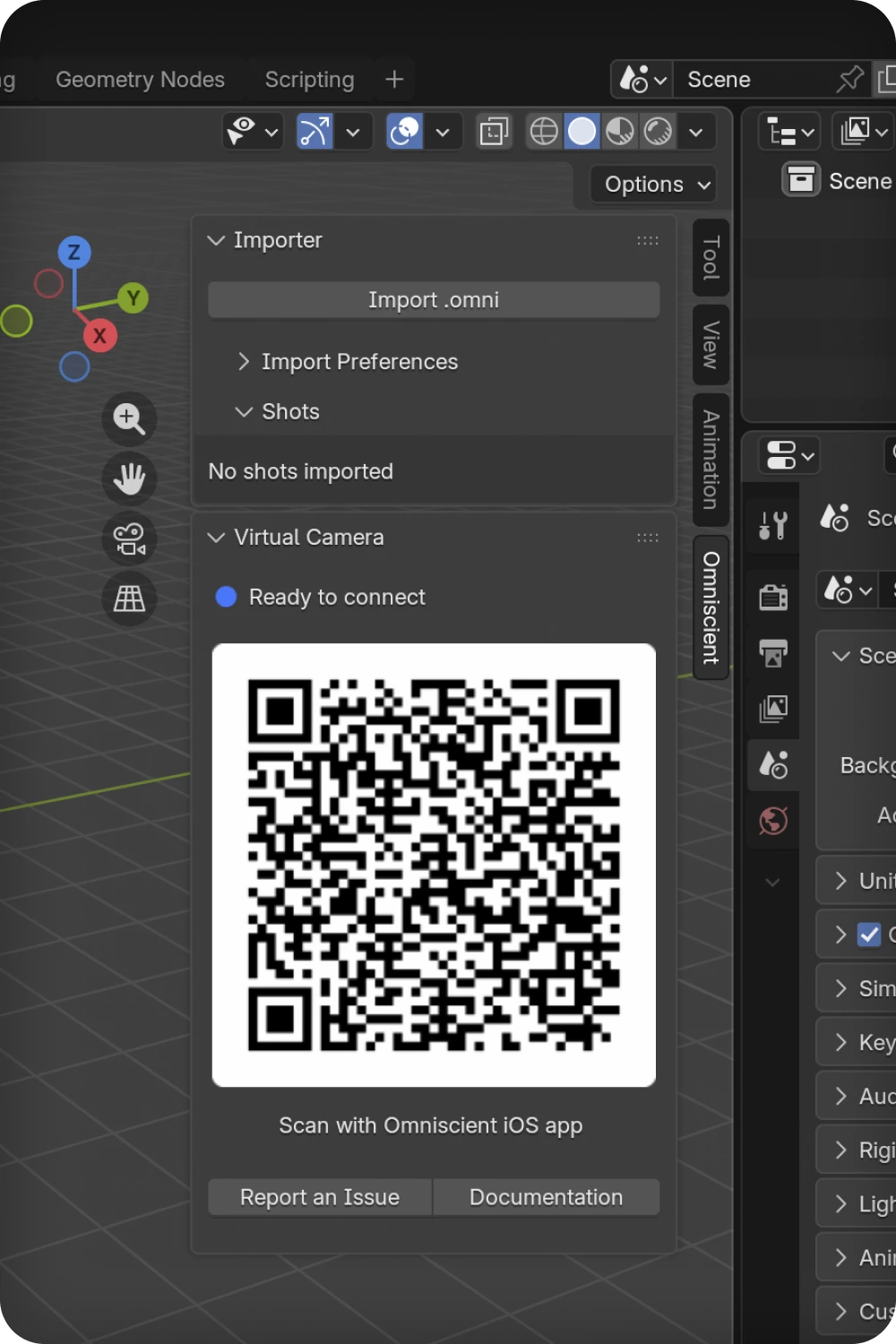
In Blender, open Omniscient > Virtual Camera.
Start on iOS
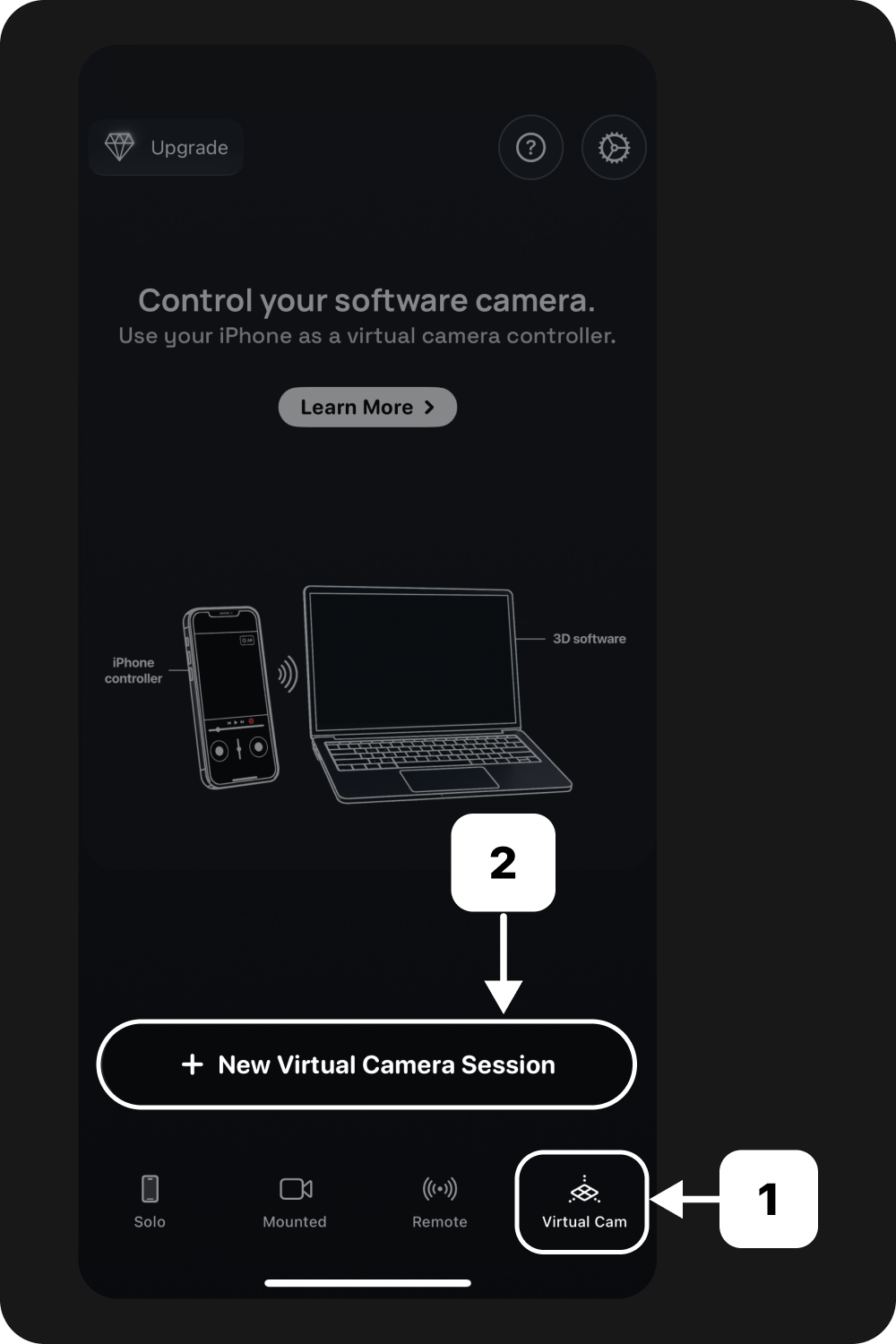
In Omniscient, open Virtual Cam, then tap New Virtual Camera Session.
Scan Blender
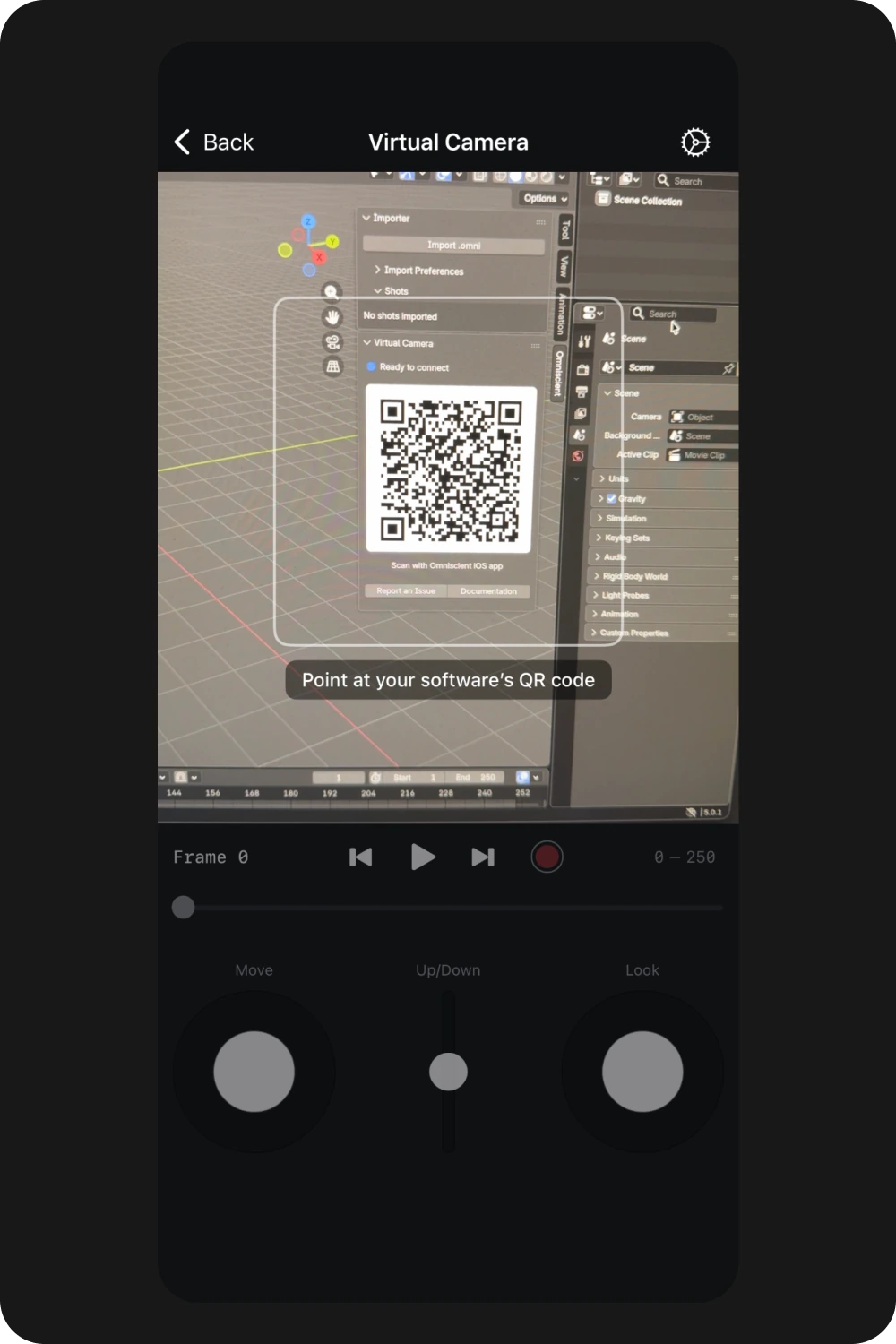
Point the iOS scanner at the QR code in Blender.
Confirm connection
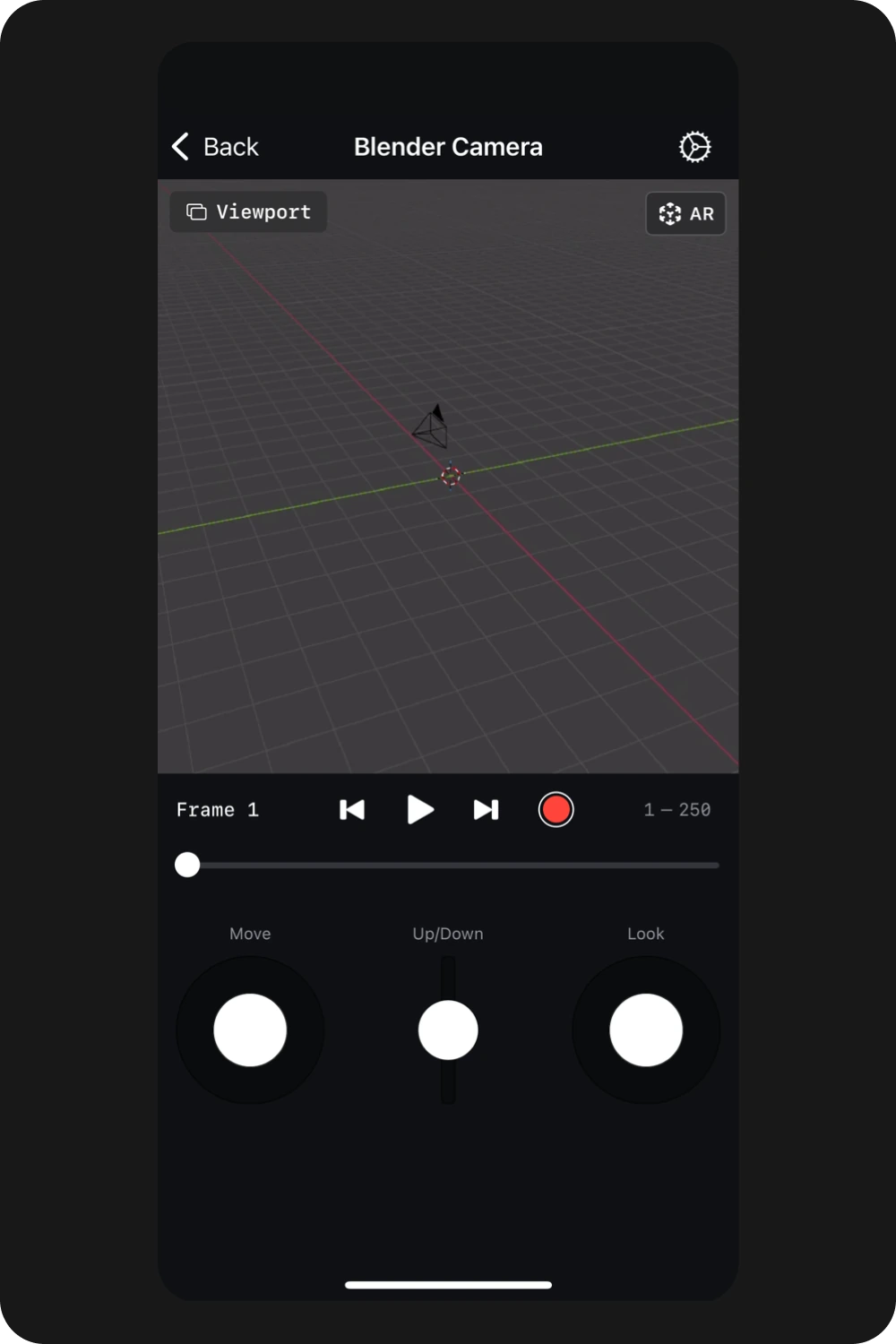
You should now see your Blender viewport in the iOS app.
Controls and features
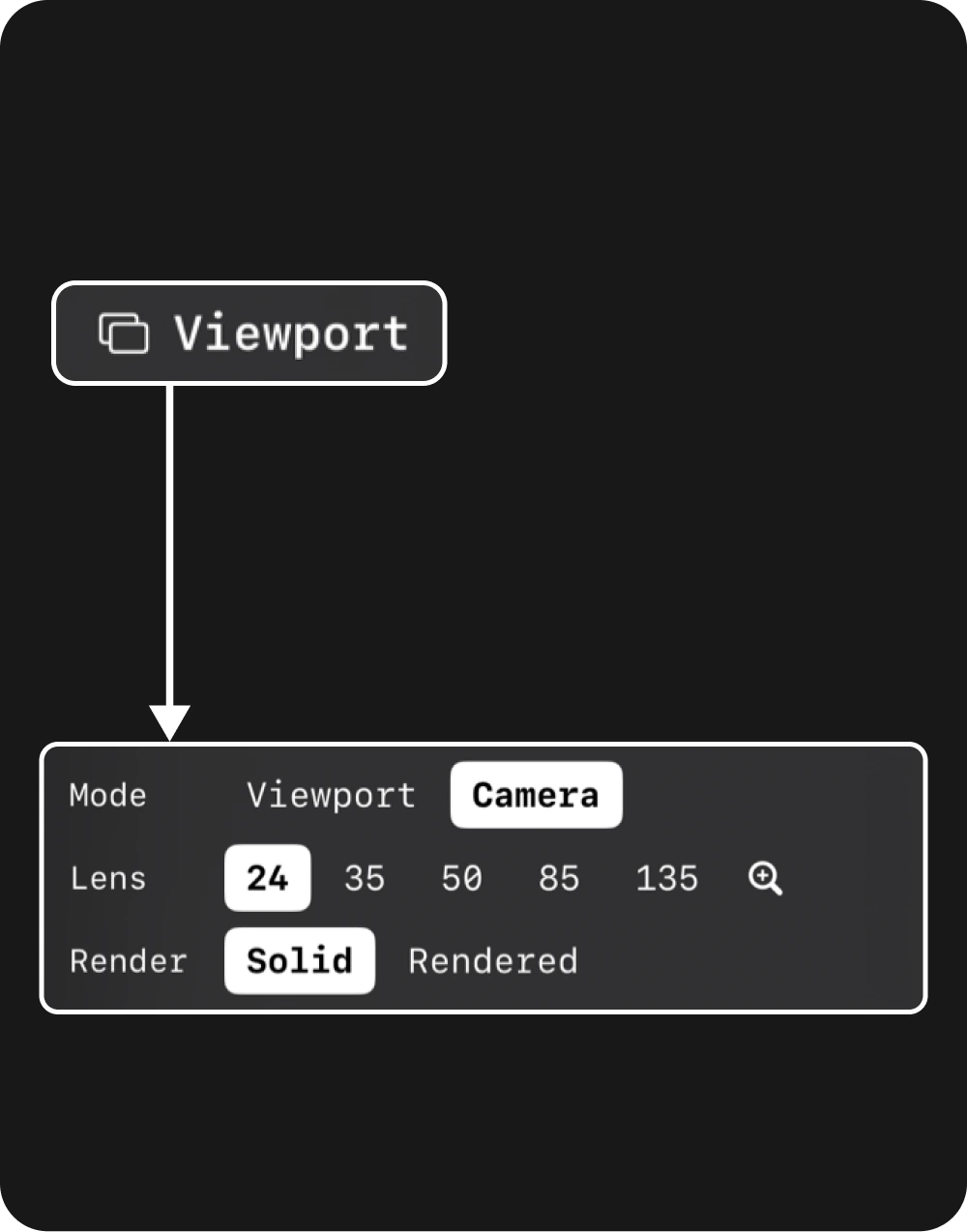
Viewport or Camera mode
Use Viewport to explore your scene. Use Camera for shot work, from framing and camera control to motion recording and AR handheld movement.
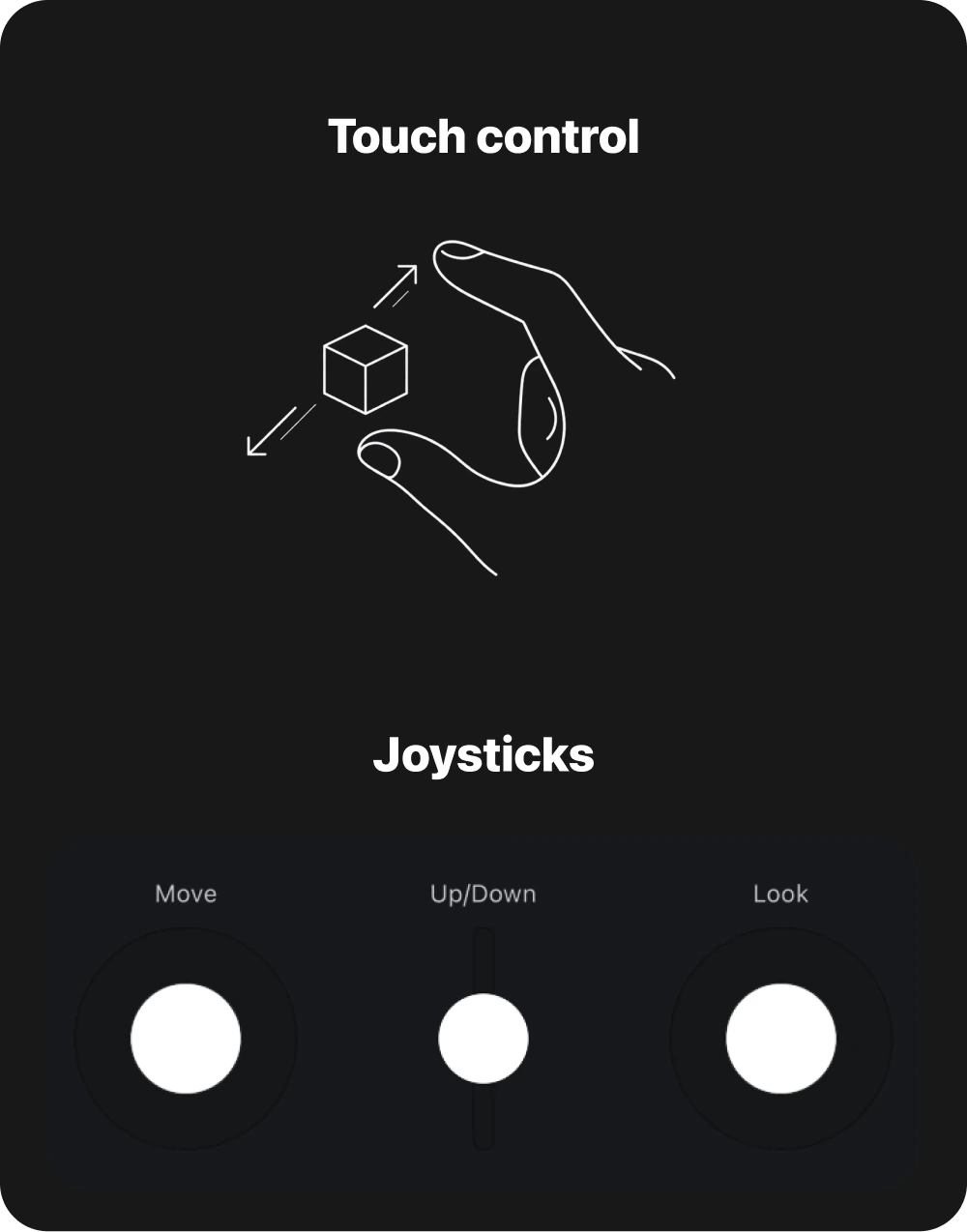
Move through the scene
In Viewport mode, move through the scene using touch controls or joysticks. In landscape, tap the controller button to show or hide the joystick overlay.
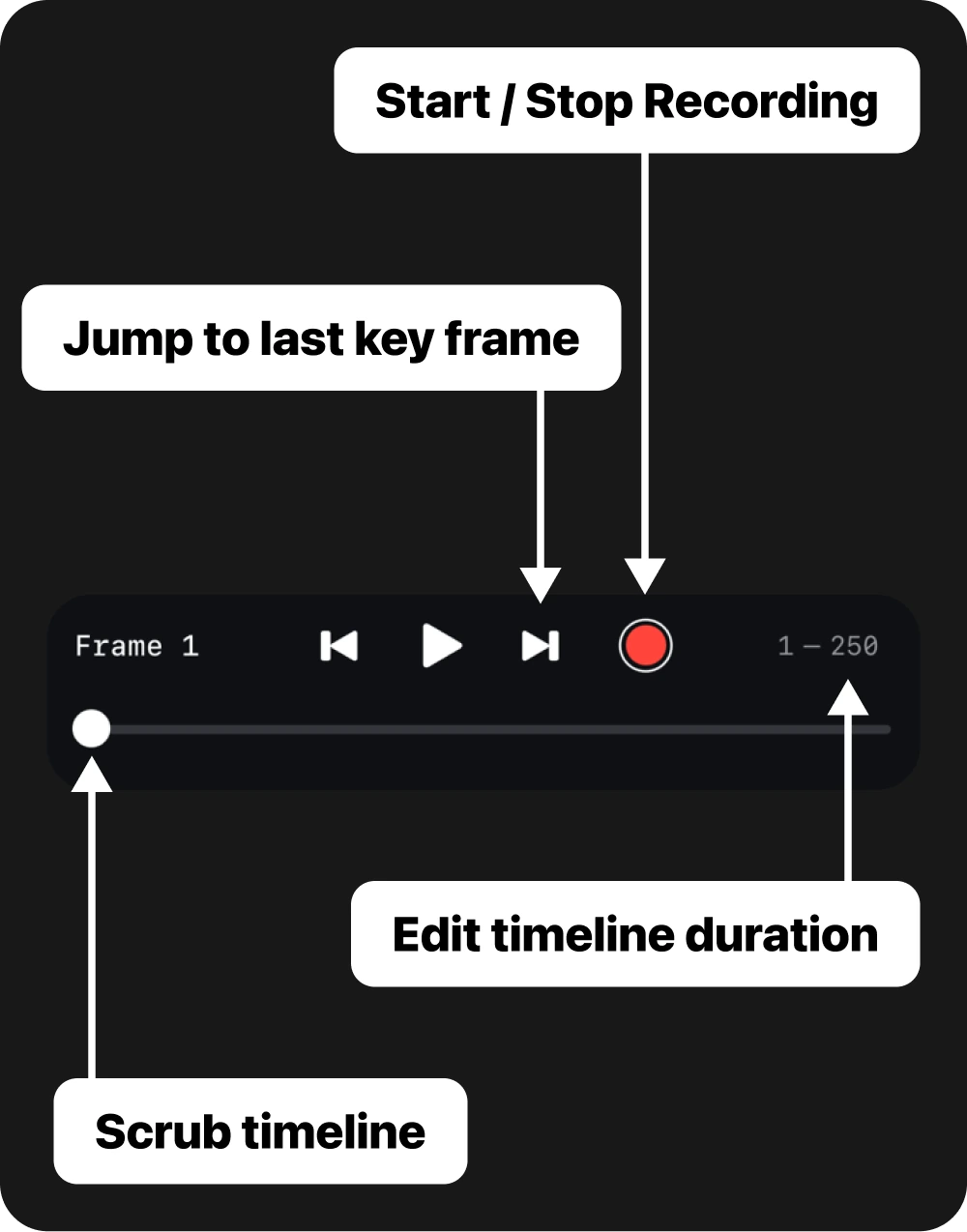
Timeline and recording
Play, pause, scrub, jump to the start or end frame, and record camera motion. Switch to Camera mode before recording a camera move.
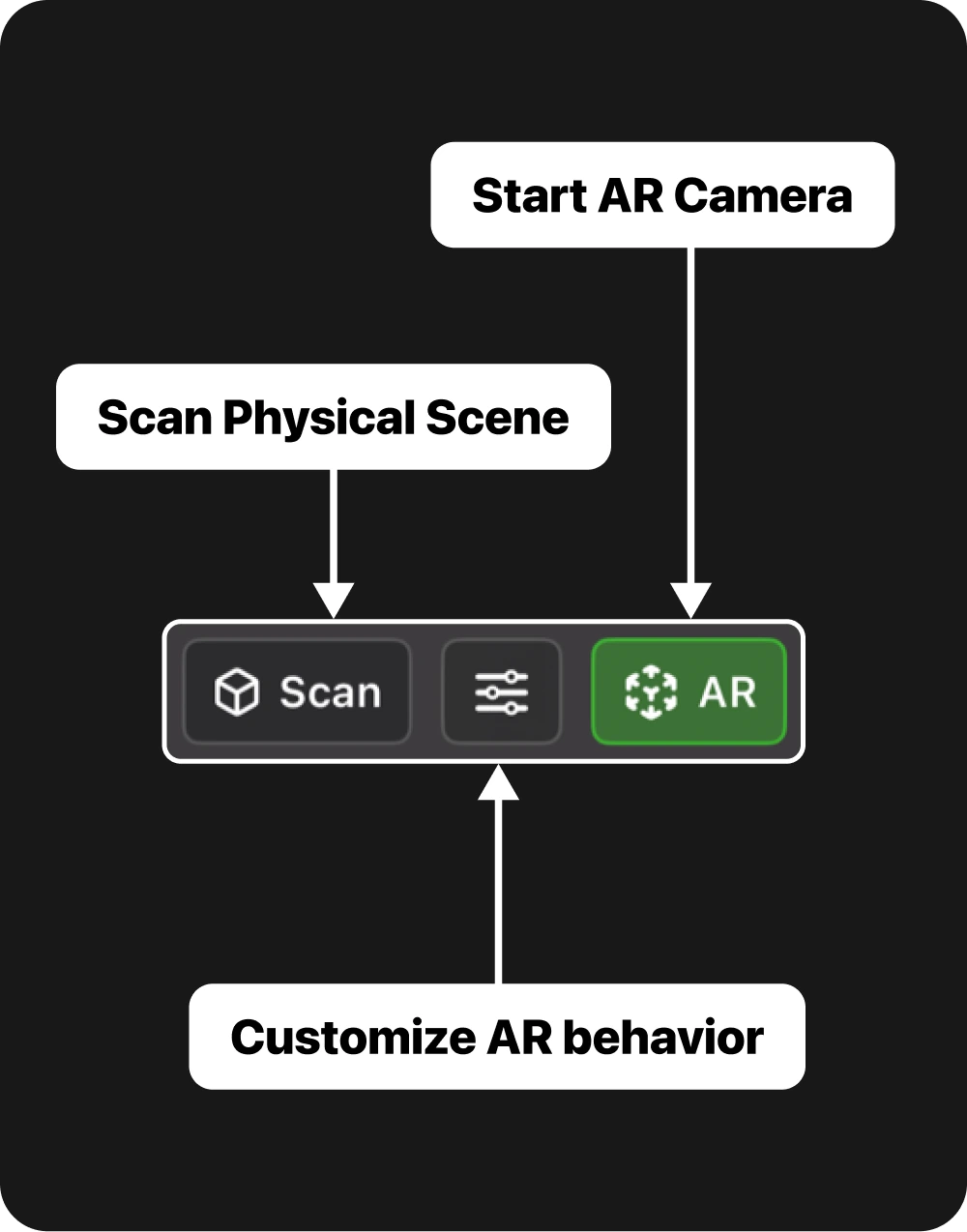
AR movement and Scan
Tap AR to drive the Blender camera from device motion. Supported devices can also show Scan for spatial mesh capture.
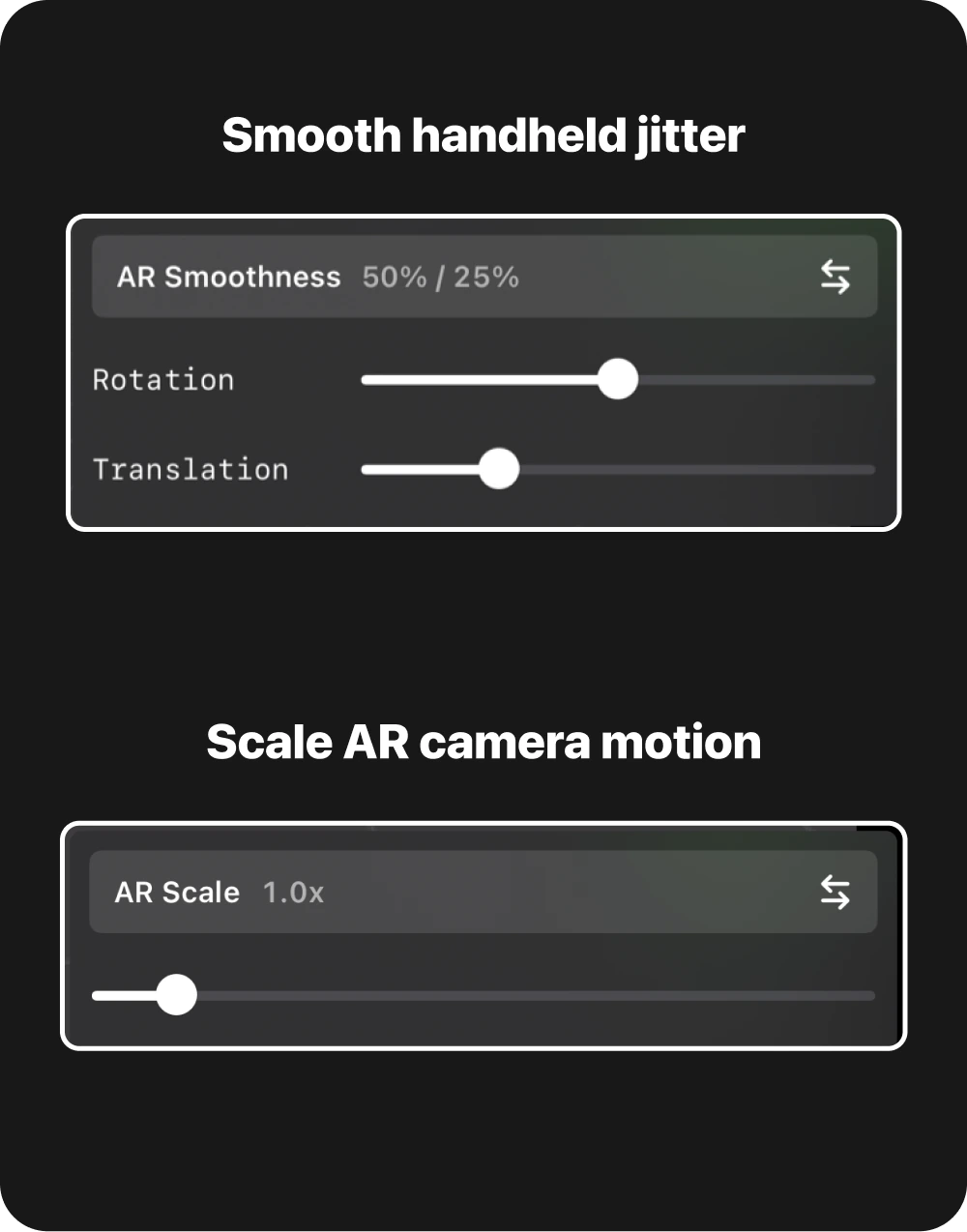
AR tuning
Use AR Smoothness to reduce jitter and AR Scale to change how device movement maps into the Blender scene.
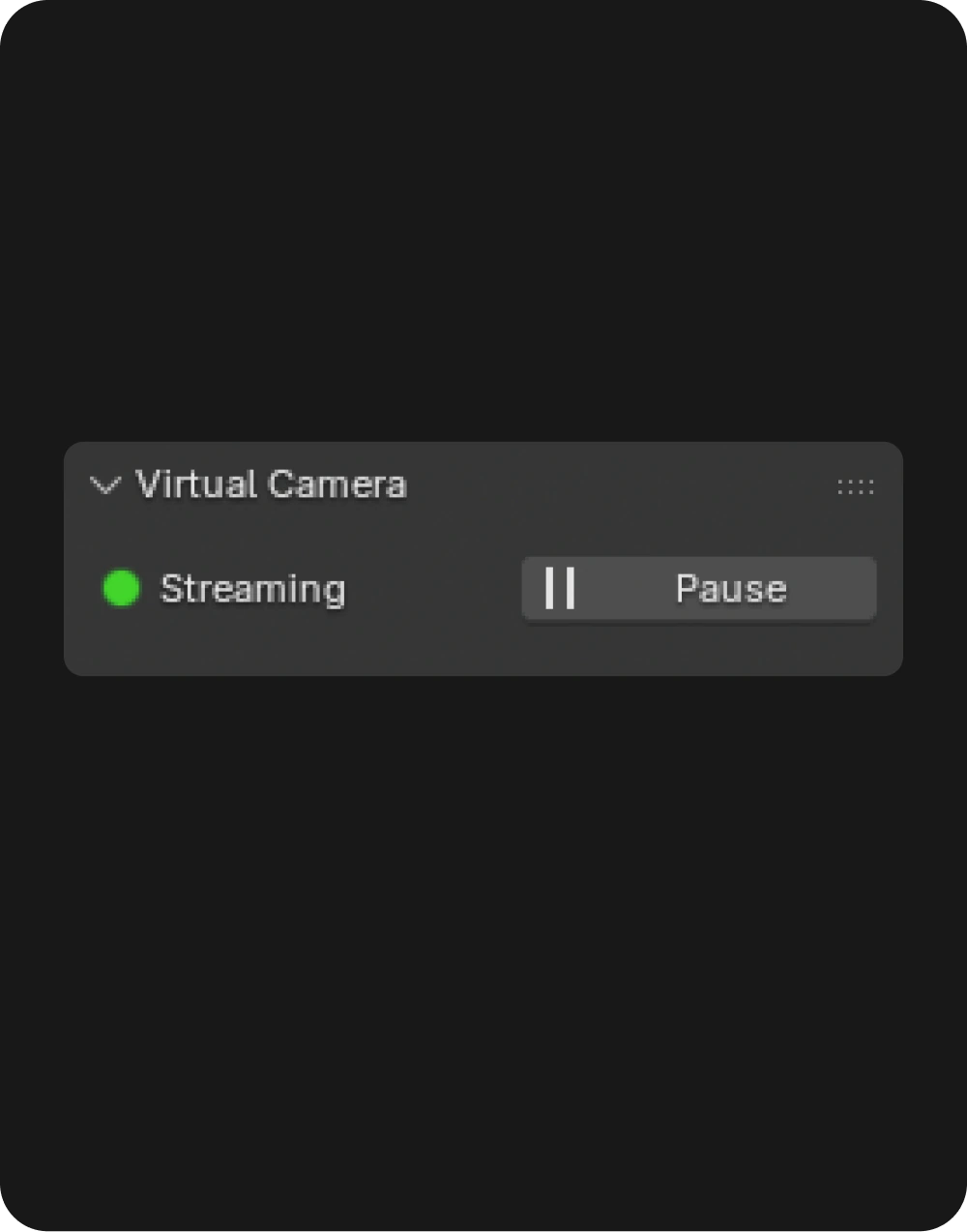
Pause or disconnect
Use Pause and Resume to temporarily stop the stream. Closing Blender, closing the file, leaving the iOS session, or losing the network ends the session.
Troubleshooting
The QR code does not connect
What you see: iOS scans the QR code, but the session does not start.
Try this:
- Make sure you are scanning the QR code from Omniscient > Virtual Camera in Blender.
- Restart Blender to generate a fresh QR code.
- Start a new Virtual Camera Session on iOS.
- Scan the fresh QR code.
iOS says Blender cannot be reached
What you see: Omniscient on iOS says it cannot reach Blender.
This usually means the iPhone or iPad cannot reach Blender on the local network.
Try this:
- Put the iOS device and computer on the same Wi-Fi network.
- Enable iOS Settings > Privacy & Security > Local Network > Omniscient.
- Keep Blender open while connecting.
- Allow Blender through the computer firewall if prompted.
- Disable VPN, proxy, guest Wi-Fi, or router client isolation for this test.
The session connects but the stream is blank
If the Blender stream is black or empty on iOS, please contact us using the Report an Issue button below the QR code.
Controls move the wrong target
What you see: the iOS controls work, but they move the viewport when you expected the camera, or the camera when you expected the viewport.
Open the mode menu and choose the target you want:
- Viewport moves Blender's live viewport.
- Camera moves the active Blender scene camera.
AR does not start or Scan is missing
Try moving your device slowly in a well-lit area with clear surface details.
The LiDAR scan is only available on devices that support scene reconstruction. On non-Pro models, scanning is limited to detected flat surfaces.
You need to report a problem
Use Report an Issue in the Blender Virtual Camera panel. Include the Blender version, add-on version, iOS device model, and whether the devices are on the same local network.
FAQ
Does this replace importing .omni files?
No. Virtual Camera is a live control and streaming workflow. Importing .omni files remains a separate Blender add-on workflow.
Does Virtual Camera require the internet?
The live session runs over your local network. You may still need internet access for app updates or support links.
Which mode should I use?
Use Camera for AR camera movement, recording, and shot work. Use Viewport for navigation and look development.
Can I use an older Blender add-on?
No. The Blender Virtual Camera workflow requires the current add-on with the Virtual Camera panel.