Remote App
iPhone/iPad-based remote sessions use two roles: Camera and Controller.
- The Camera records and streams the shot.
- The Controller monitors the Camera and operates it remotely.
Requirements
- Two devices running Omniscient iOS app
- A local network
Limitations
- Remote works only when both devices are on the same local network.
- Streaming quality depends on network stability and signal strength.
1. Set up both devices
- Connect both devices on the same local network
- Install the Omniscient iOS app on both devices
2. Set up the Camera
- Open the Omniscient iOS app
- Go to the Remote tab
- Tap New Remote Session, then choose Camera
- Allow Local Network access if prompted
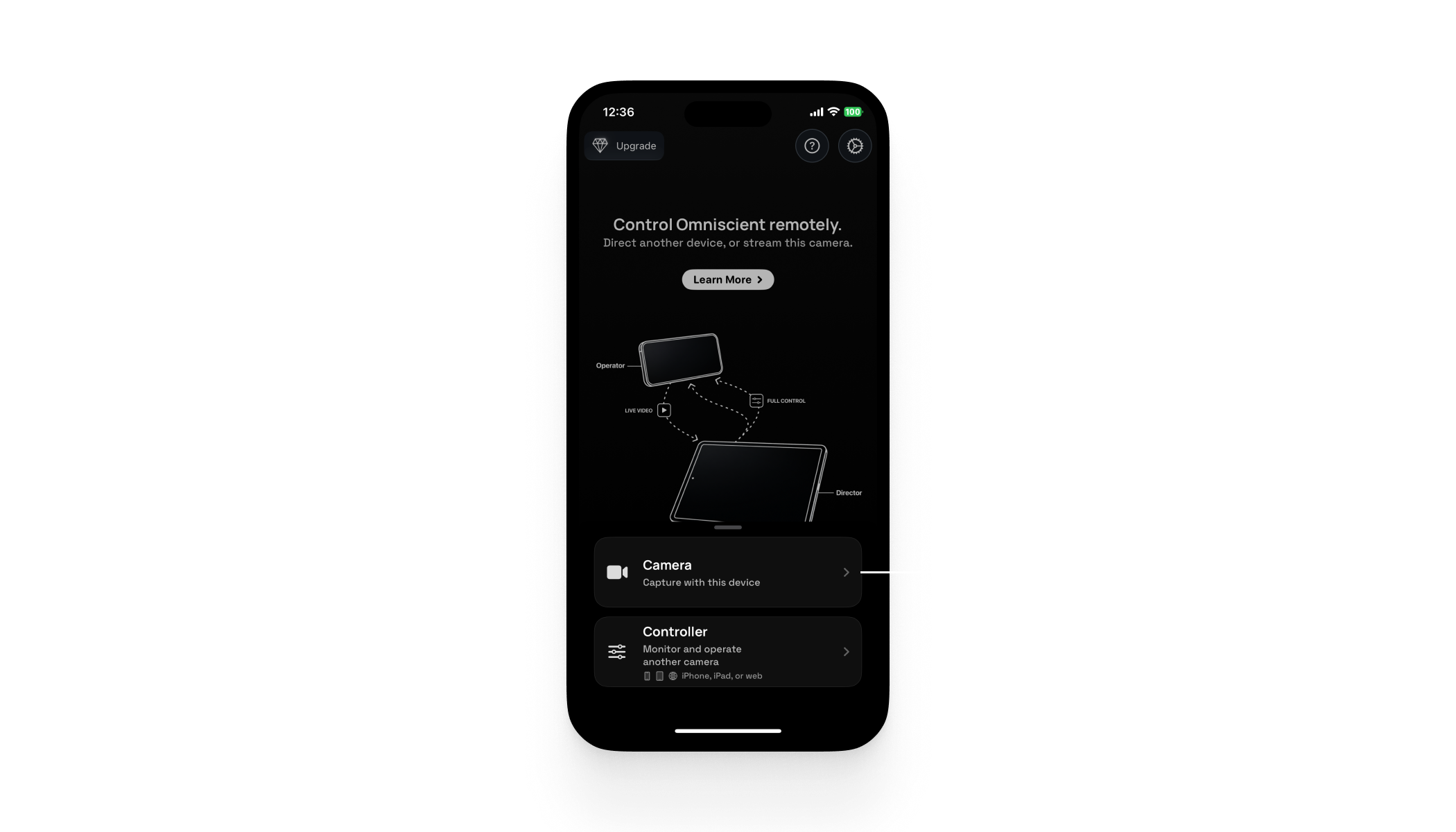
Launch From a Shot
You can also launch Remote while making a normal shot:
- Open the toolbox
- Press the remote button
3. Set up the Controller
- Take your second device, open the Omniscient iOS app
- Go to the Remote tab
- Tap New Remote Session, then choose Controller
- Allow Local Network access if prompted
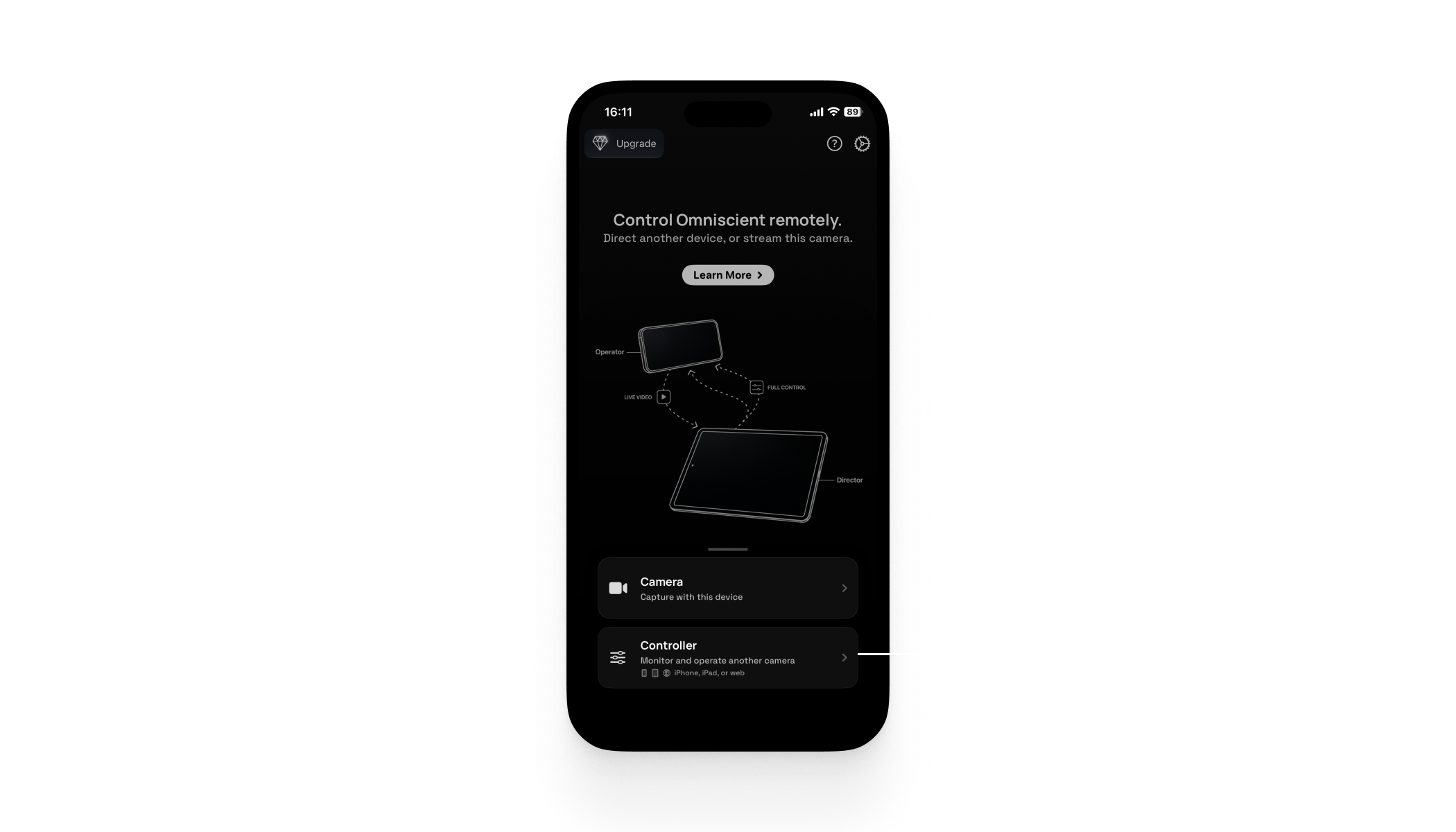
4. Connect both devices
- Scan the QR code shown on the Controller with the Camera.
Same Network Required
Make sure both devices are connected to the same local network.
5. Use the Controller
The Controller can now operate the Camera:
- Start and stop recording remotely
FAQ
The devices will not connect. What should I check?
Check the following:
- Confirm both devices are connected to the same Wi-Fi network.
- Ensure Local Network access is enabled for Omniscient on both devices.
- Disable VPN/Proxy on both devices while pairing.
- Keep both apps open and in the foreground during pairing.
- Return to the Remote tab on both devices and retry scanning the QR code.
The stream isn't smooth. What helps?
The performance of this feature depends on connection quality between devices. To improve stability:
- Move both devices closer to the Wi-Fi access point.
- Reduce network congestion (large uploads/downloads on the same network).
- Keep both devices charged and disable Low Power Mode if possible.
- Retry pairing if latency or stutter persists.