Remote Web
In a Remote Web session, the iPhone/iPad is the Camera and the browser is the Controller.
Requirements
- An iPhone/iPad running Omniscient iOS app
- A second device with a web browser (Google Chrome recommended)
- A local network
Limitations
- Remote works only when both devices are on the same local network.
- Streaming quality depends on network stability and signal strength.
1. Set up the Camera
- Open the Omniscient iOS app
- Go to the Remote tab
- Tap New Remote Session, then choose Camera
- Allow Local Network access if prompted
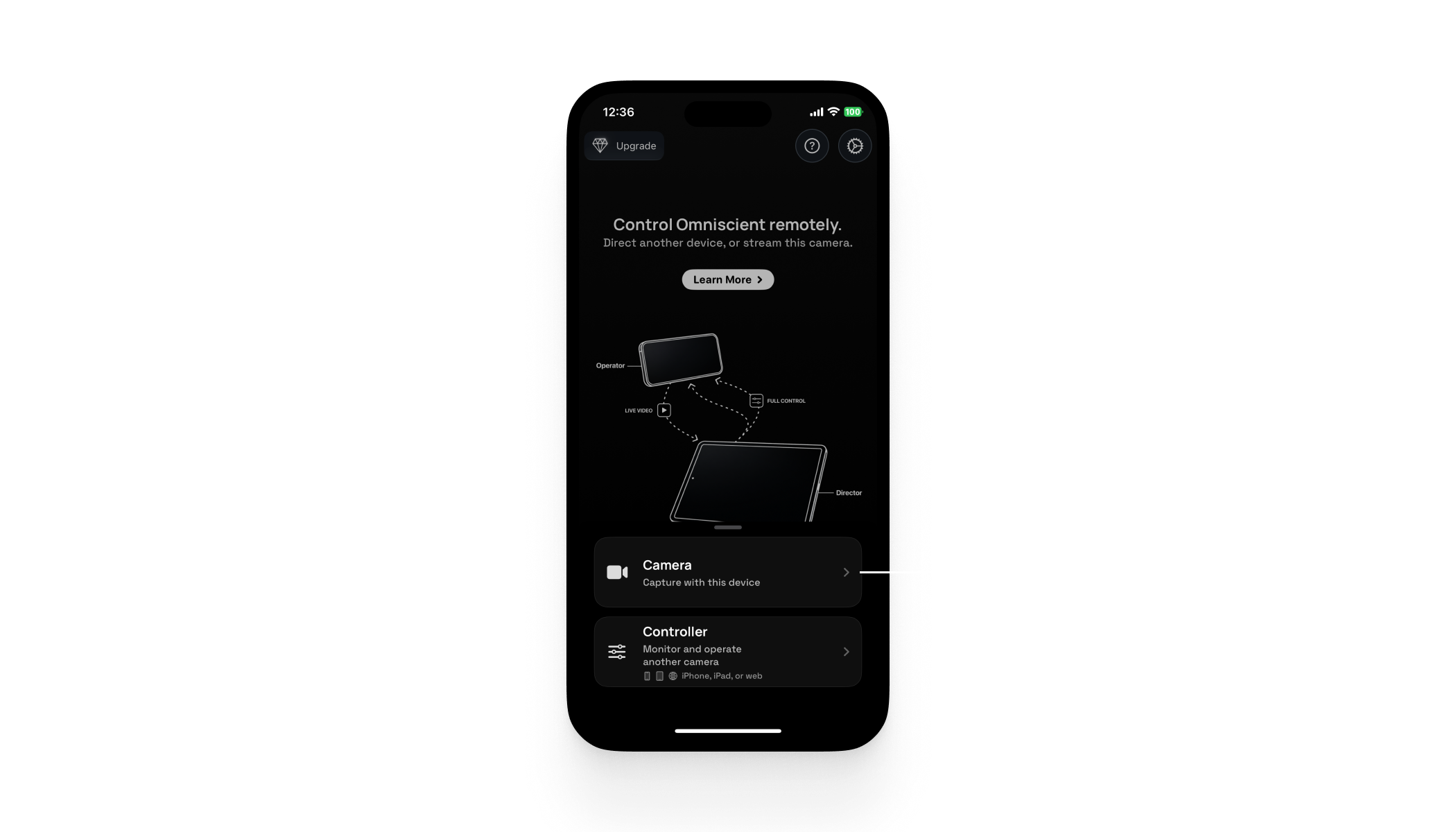
Launch From a Shot
You can also launch Remote while making a normal shot:
- Open the toolbox
- Press the remote button
2. Open the Controller
- On your second device, open:
https://omniscient-app.com/remote
3. Connect both devices
- Scan the Controller's QR code with the Camera.
4. Use the Controller
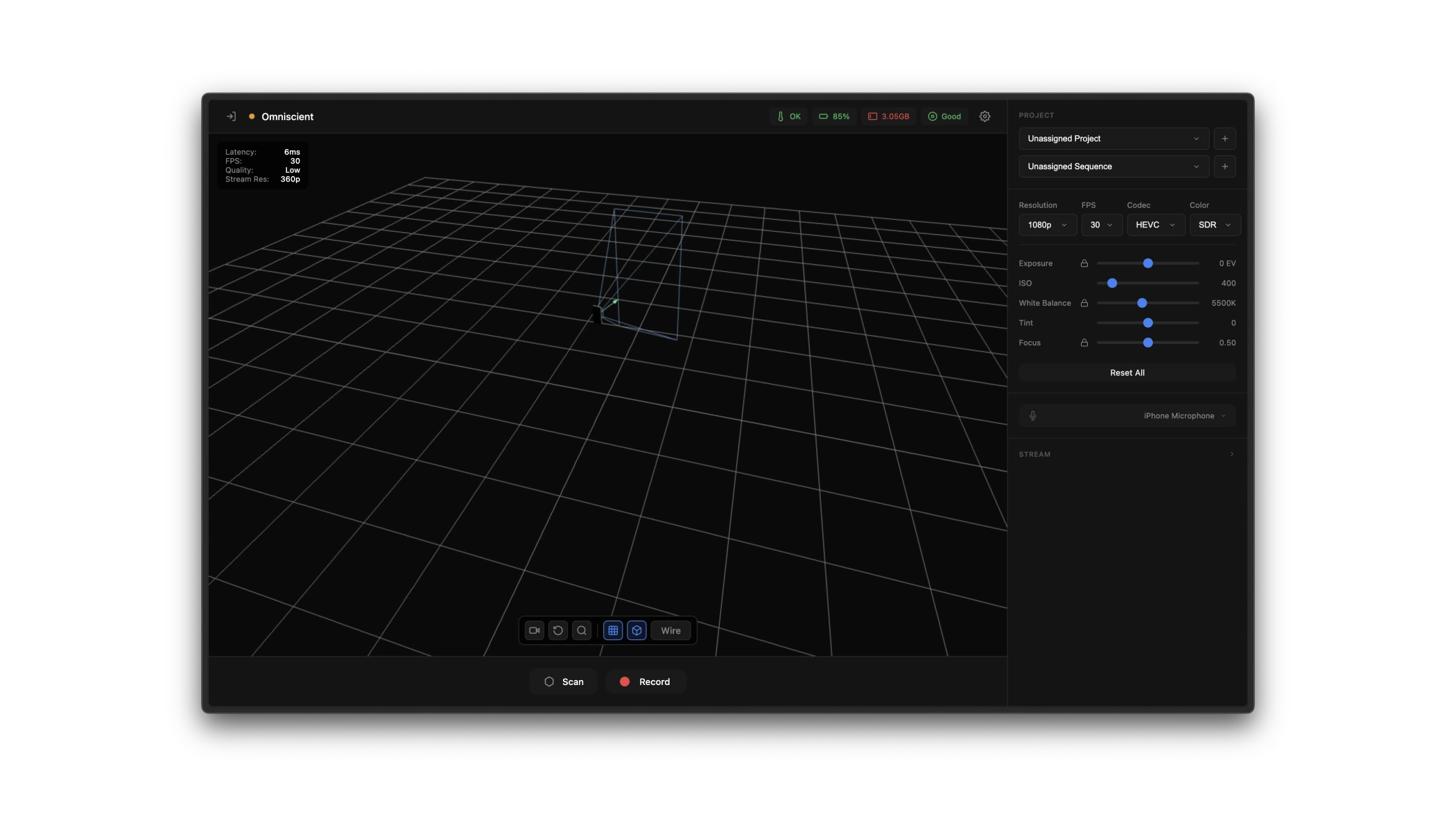
- Start and stop recording remotely
- Monitor status, storage, and battery
- Adjust basic recording settings if supported
Troubleshooting
The remote page will not connect. What should I check?
Check the following:
- Confirm both devices are connected to the same Wi-Fi network.
- Ensure Local Network access is enabled for Omniscient in iOS Settings.
- Disable VPN/Proxy on both devices while pairing.
- Keep the Camera app in the foreground during pairing.
- Refresh the browser page and retry scanning the QR code.