
Camera Body Guide

The Omniscient Mounted workflow is designed to be flexible and work with a wide range of cameras. However, some cameras are easier to work with than others. The characteristics below help you compare models and choose a camera for your setup.

Mounting the iPhone is straightforward: use the attachment already available on your camera or rig.

  • Accessory shoe (hot or cold): attach a phone holder using a cold-shoe mount. No electronic connection through the shoe is needed.
  • Accessory screw thread: attach a compatible phone mount directly to the body or an existing rig plate. A separate camera cage is not needed.
  • Neither available: add a camera cage to provide an accessory shoe or screw threads.

The iPhone must stay firmly attached, without shifting or rotating relative to the camera. See the Rigid Mount Guide for mounting options.

Each card includes setup details and sources for the exact model. Compatibility ratings summarize the documented hardware and settings; they do not certify a successful Mounted test. A missing readout benchmark does not mean the camera is incompatible. Rolling shutter is supported, with lower readout times preferred.
18 cameras
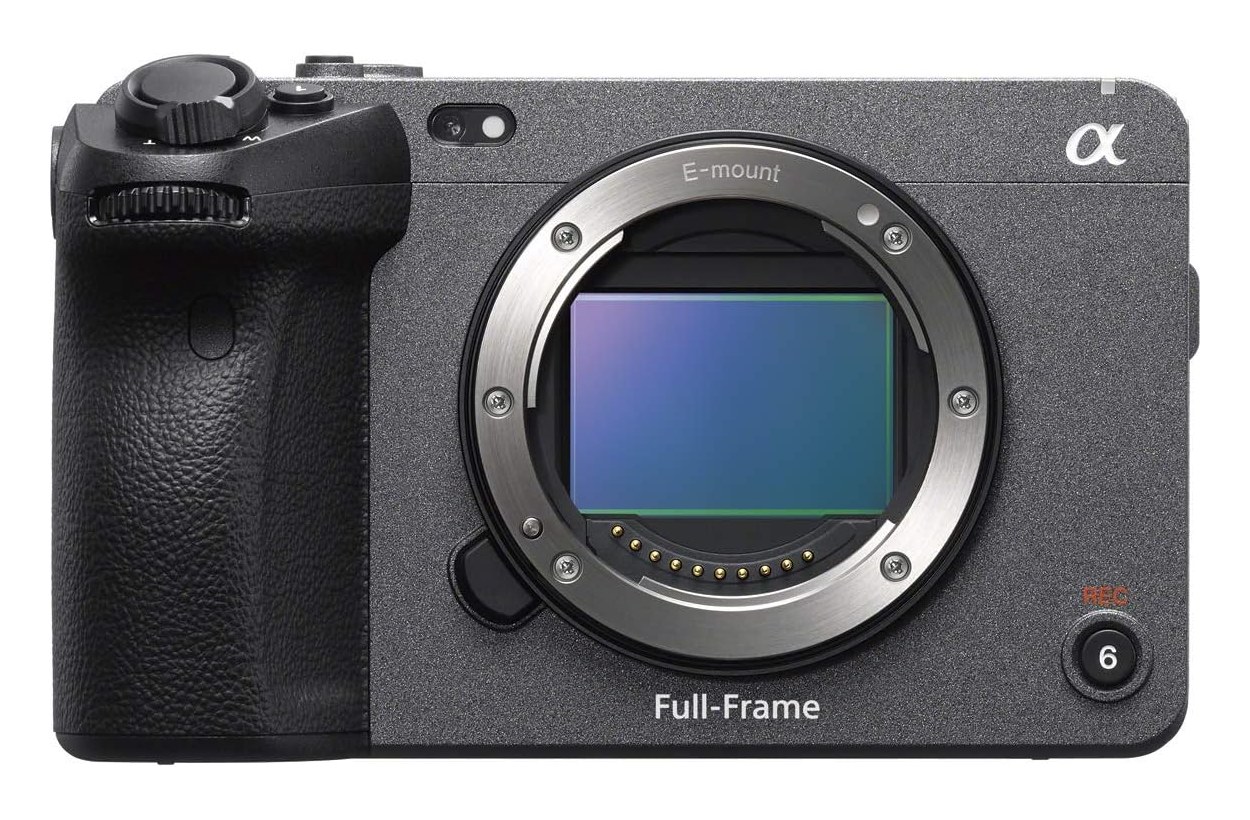
Sony FX3 camera body
Sony FX3
Perfect compatibilityTechnical summary of the documented setup characteristics, not a guarantee or a beta-test result. Results depend on the lens, recording mode, audio connection, mounting, and calibration.
✓Stabilization can be disabledSet SteadyShot to Off for movies and disable any lens-side stabilization. Use the same settings for calibration and capture.
✓Audio input availableUse the body’s 3.5 mm stereo microphone input. Set the recording level manually and avoid audio processing on the sync signal. The XLR handle, if fitted, has separate audio settings.
✓Mount via accessory threadsFive 1/4-20 UNC accessory holes allow a compatible phone mount to attach directly to the body. A separate camera cage is not required. Secure the mount against rotation.
✓LowApprox. 8.9 ms in UHD 4K at 24/60p; 7.8 ms at 120p in DPReview’s FX30 comparison. Values are specific to these tested modes. rolling shutter (Low recommendedOmniscient supports rolling shutter. Lower rolling shutter reduces tracking complexity and can improve the chances of a better result.)
Setup details and sources

Reviewed October 25, 2026. Readout measurements apply to the stated recording modes. Bands: Low <10 ms, Medium 10–20 ms, High >20 ms.

  • Stabilization. Set SteadyShot to Off for movies and disable any lens-side stabilization. Use the same settings for calibration and capture. Source ↗
  • Audio connection. Use the body’s 3.5 mm stereo microphone input. Set the recording level manually and avoid audio processing on the sync signal. The XLR handle, if fitted, has separate audio settings. Source ↗
  • Mounting. Five 1/4-20 UNC accessory holes allow a compatible phone mount to attach directly to the body. A separate camera cage is not required. Secure the mount against rotation. Source ↗
  • Sensor readout. Approx. 8.9 ms in UHD 4K at 24/60p; 7.8 ms at 120p in DPReview’s FX30 comparison. Values are specific to these tested modes. Source ↗
Sony FX3A camera body
Sony FX3A
Compatibility not ratedTechnical summary of the documented setup characteristics, not a guarantee or a beta-test result. Readout time is not quantified or stabilization requires a mode-specific workflow. See setup details below.
✓Stabilization can be disabledSet SteadyShot to Off for movies and disable any lens-side stabilization. Use the same settings for calibration and capture.
✓Audio input availableUse the body’s 3.5 mm stereo microphone input. Set the recording level manually and avoid audio processing on the sync signal. The XLR handle, if fitted, has separate audio settings.
✓Mount via accessory threadsFive 1/4-20 UNC accessory holes allow a compatible phone mount to attach directly to the body. A separate camera cage is not required. Secure the mount against rotation.
?Not quantifiedNo separate FX3A readout measurement was found. The FX3 result is not presented as a measurement of the FX3A; this is a missing benchmark, not evidence of incompatibility. rolling shutter (Low recommendedOmniscient supports rolling shutter. Lower rolling shutter reduces tracking complexity and can improve the chances of a better result.)
Setup details and sources

Reviewed October 25, 2026. Readout measurements apply to the stated recording modes. Bands: Low <10 ms, Medium 10–20 ms, High >20 ms.

  • Stabilization. Set SteadyShot to Off for movies and disable any lens-side stabilization. Use the same settings for calibration and capture. Source ↗
  • Audio connection. Use the body’s 3.5 mm stereo microphone input. Set the recording level manually and avoid audio processing on the sync signal. The XLR handle, if fitted, has separate audio settings. Source ↗
  • Mounting. Five 1/4-20 UNC accessory holes allow a compatible phone mount to attach directly to the body. A separate camera cage is not required. Secure the mount against rotation. Source ↗
  • Sensor readout. No separate FX3A readout measurement was found. The FX3 result is not presented as a measurement of the FX3A; this is a missing benchmark, not evidence of incompatibility. Source ↗
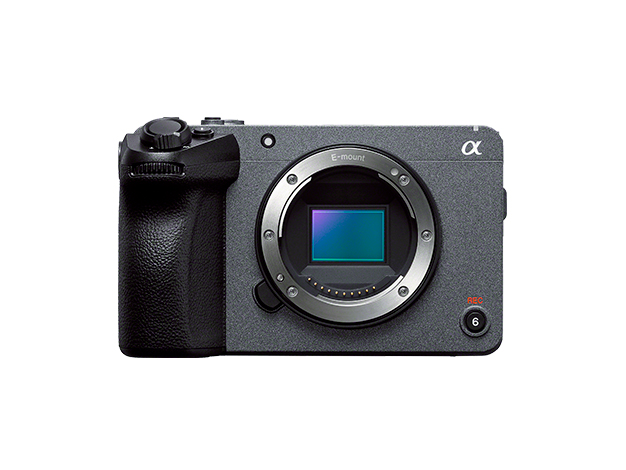
Sony FX30 camera body
Sony FX30
Good compatibilityTechnical summary of the documented setup characteristics, not a guarantee or a beta-test result. Results depend on the lens, recording mode, audio connection, mounting, and calibration.
✓Stabilization can be disabledSet SteadyShot to Off for movies and disable any lens-side stabilization. Use the same settings for calibration and capture.
✓Audio input availableUse the body’s 3.5 mm stereo microphone input. Set the recording level manually and avoid audio processing on the sync signal. The XLR handle, if fitted, has separate audio settings.
✓Mount via accessory threadsFive 1/4-20 UNC accessory holes allow a compatible phone mount to attach directly to the body. A separate camera cage is not required. Secure the mount against rotation.
!MediumApprox. 16.1 ms in UHD 4K at 24/60p; 8.1 ms in the cropped 120p mode. The Medium band describes the 24/60p modes, not every recording mode. rolling shutter (Low recommendedOmniscient supports rolling shutter. Lower rolling shutter reduces tracking complexity and can improve the chances of a better result.)
Setup details and sources

Reviewed October 25, 2026. Readout measurements apply to the stated recording modes. Bands: Low <10 ms, Medium 10–20 ms, High >20 ms.

  • Stabilization. Set SteadyShot to Off for movies and disable any lens-side stabilization. Use the same settings for calibration and capture. Source ↗
  • Audio connection. Use the body’s 3.5 mm stereo microphone input. Set the recording level manually and avoid audio processing on the sync signal. The XLR handle, if fitted, has separate audio settings. Source ↗
  • Mounting. Five 1/4-20 UNC accessory holes allow a compatible phone mount to attach directly to the body. A separate camera cage is not required. Secure the mount against rotation. Source ↗
  • Sensor readout. Approx. 16.1 ms in UHD 4K at 24/60p; 8.1 ms in the cropped 120p mode. The Medium band describes the 24/60p modes, not every recording mode. Source ↗
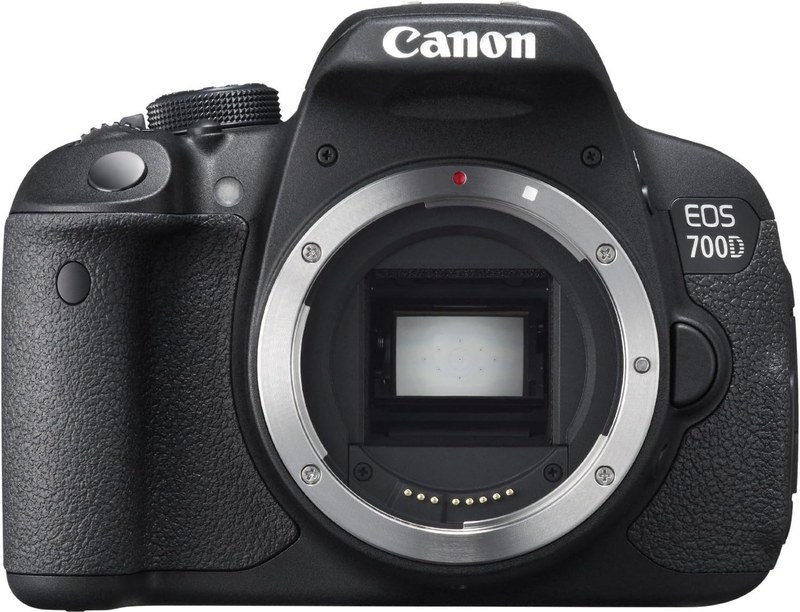
Canon EOS 700D camera body
Canon EOS 700DAlso known as EOS Rebel T5i / EOS Kiss X7i
Compatibility not ratedTechnical summary of the documented setup characteristics, not a guarantee or a beta-test result. Readout time is not quantified or stabilization requires a mode-specific workflow. See setup details below.
✓No in-body stabilizationStabilization is lens-based on this DSLR. Set the lens STABILIZER / IS switch to OFF before calibration and recording (manual, About the Lens Image Stabilizer).
✓Audio input availableA 3.5 mm stereo microphone input is available. In a Creative Zone movie mode, choose Manual sound recording. The Wind filter applies only to the built-in microphones; disable it for wireless sync. Check the attenuator setting and recorded signal level.
✓Mount via accessory shoeAttach a cold-shoe phone mount to the accessory shoe. No electrical connection is used. A camera cage is optional if the shoe is free and the mount holds the phone without movement.
?Not quantifiedA reliable model-specific readout time for the 700D’s movie modes was not found. Do not substitute a figure from the 70D, 650D or another Canon body. rolling shutter (Low recommendedOmniscient supports rolling shutter. Lower rolling shutter reduces tracking complexity and can improve the chances of a better result.)
Setup details and sources

Reviewed October 25, 2026. Readout measurements apply to the stated recording modes. Bands: Low <10 ms, Medium 10–20 ms, High >20 ms.

  • Stabilization. Stabilization is lens-based on this DSLR. Set the lens STABILIZER / IS switch to OFF before calibration and recording (manual, About the Lens Image Stabilizer). Source ↗
  • Audio connection. A 3.5 mm stereo microphone input is available. In a Creative Zone movie mode, choose Manual sound recording. The Wind filter applies only to the built-in microphones; disable it for wireless sync. Check the attenuator setting and recorded signal level. Source ↗
  • Mounting. Attach a cold-shoe phone mount to the accessory shoe. No electrical connection is used. A camera cage is optional if the shoe is free and the mount holds the phone without movement. Source ↗
  • Sensor readout. A reliable model-specific readout time for the 700D’s movie modes was not found. Do not substitute a figure from the 70D, 650D or another Canon body. Source ↗
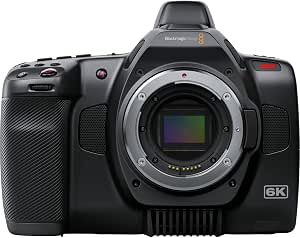
Blackmagic Pocket Cinema Camera 6K camera body
Blackmagic Pocket Cinema Camera 6K
Good compatibilityTechnical summary of the documented setup characteristics, not a guarantee or a beta-test result. Results depend on the lens, recording mode, audio connection, mounting, and calibration.
✓No in-body stabilizationThe original Pocket 6K has no in-body stabilization. Disable IS on a stabilized lens before calibration and recording. Use the original camera footage without added stabilization in post.
✓Audio input availableUse the 3.5 mm stereo input, or one mini-XLR mic/line input with the appropriate cable. Select the connected input and set its level in the Audio menu.
✓Mount via accessory threadsA top 1/4-20 thread accepts small accessories. Keep the phone mount short and light; Blackmagic warns against heavy accessories on extension arms. Use an existing rig or a cage for heavier assemblies.
!MediumCineD measured 19.8 ms at full-sensor 6K. This is the original Pocket 6K measurement, not a separate test of the 6K Pro or G2. rolling shutter (Low recommendedOmniscient supports rolling shutter. Lower rolling shutter reduces tracking complexity and can improve the chances of a better result.)
Setup details and sources

Reviewed October 25, 2026. Readout measurements apply to the stated recording modes. Bands: Low <10 ms, Medium 10–20 ms, High >20 ms.

  • Stabilization. The original Pocket 6K has no in-body stabilization. Disable IS on a stabilized lens before calibration and recording. Use the original camera footage without added stabilization in post. Source ↗
  • Audio connection. Use the 3.5 mm stereo input, or one mini-XLR mic/line input with the appropriate cable. Select the connected input and set its level in the Audio menu. Source ↗
  • Mounting. A top 1/4-20 thread accepts small accessories. Keep the phone mount short and light; Blackmagic warns against heavy accessories on extension arms. Use an existing rig or a cage for heavier assemblies. Source ↗
  • Sensor readout. CineD measured 19.8 ms at full-sensor 6K. This is the original Pocket 6K measurement, not a separate test of the 6K Pro or G2. Source ↗
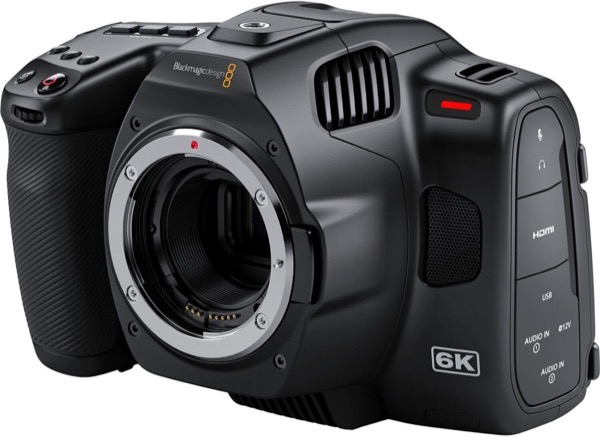
Blackmagic Pocket Cinema Camera 6K Pro camera body
Blackmagic Pocket Cinema Camera 6K Pro
Compatibility not ratedTechnical summary of the documented setup characteristics, not a guarantee or a beta-test result. Readout time is not quantified or stabilization requires a mode-specific workflow. See setup details below.
✓No in-body stabilizationNo in-body stabilization. Turn off the lens IS switch, or disable Lens Stabilization in the camera menu for supported lenses without a switch. Gyro data does not stabilize the recorded image by itself; leave gyro stabilization off when preparing footage in DaVinci Resolve.
✓Audio input availableUse the 3.5 mm stereo input, or two mini-XLR mic/line inputs with the appropriate cable. Select the connected input and set its level in the Audio menu.
✓Mount via accessory threadsA top 1/4-20 thread accepts small accessories. Keep the phone mount short and light; Blackmagic warns against heavy accessories on extension arms. Use an existing rig or a cage for heavier assemblies.
?Not quantifiedThe 6K Pro uses a rolling shutter, but a separate model-specific readout benchmark was not verified. CineD lists this model as not tested; the original Pocket 6K’s 19.8 ms is not copied here. rolling shutter (Low recommendedOmniscient supports rolling shutter. Lower rolling shutter reduces tracking complexity and can improve the chances of a better result.)
Setup details and sources

Reviewed October 25, 2026. Readout measurements apply to the stated recording modes. Bands: Low <10 ms, Medium 10–20 ms, High >20 ms.

  • Stabilization. No in-body stabilization. Turn off the lens IS switch, or disable Lens Stabilization in the camera menu for supported lenses without a switch. Gyro data does not stabilize the recorded image by itself; leave gyro stabilization off when preparing footage in DaVinci Resolve. Source ↗
  • Audio connection. Use the 3.5 mm stereo input, or two mini-XLR mic/line inputs with the appropriate cable. Select the connected input and set its level in the Audio menu. Source ↗
  • Mounting. A top 1/4-20 thread accepts small accessories. Keep the phone mount short and light; Blackmagic warns against heavy accessories on extension arms. Use an existing rig or a cage for heavier assemblies. Source ↗
  • Sensor readout. The 6K Pro uses a rolling shutter, but a separate model-specific readout benchmark was not verified. CineD lists this model as not tested; the original Pocket 6K’s 19.8 ms is not copied here. Source ↗
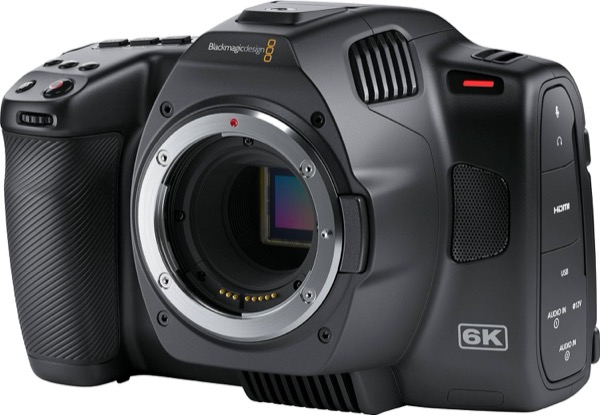
Blackmagic Pocket Cinema Camera 6K G2 camera body
Blackmagic Pocket Cinema Camera 6K G2
Compatibility not ratedTechnical summary of the documented setup characteristics, not a guarantee or a beta-test result. Readout time is not quantified or stabilization requires a mode-specific workflow. See setup details below.
✓No in-body stabilizationNo in-body stabilization. Turn off the lens IS switch, or disable Lens Stabilization in the camera menu for supported lenses without a switch. Gyro data does not stabilize the recorded image by itself; leave gyro stabilization off when preparing footage in DaVinci Resolve.
✓Audio input availableUse the 3.5 mm stereo input, or two mini-XLR mic/line inputs with the appropriate cable. Select the connected input and set its level in the Audio menu.
✓Mount via accessory threadsA top 1/4-20 thread accepts small accessories. Keep the phone mount short and light; Blackmagic warns against heavy accessories on extension arms. Use an existing rig or a cage for heavier assemblies.
!Measured skewRTINGS measured 8.00° of skew in BRAW 6K at 30 fps and 7.33° in ProRes HQ 4K from a 5.3K window at 30 fps. Fast pans show distortion. This test reports angles, not milliseconds, so it cannot be assigned a Low/Medium/High readout-time band. rolling shutter (Low recommendedOmniscient supports rolling shutter. Lower rolling shutter reduces tracking complexity and can improve the chances of a better result.)
Setup details and sources

Reviewed October 25, 2026. Readout measurements apply to the stated recording modes. Bands: Low <10 ms, Medium 10–20 ms, High >20 ms.

  • Stabilization. No in-body stabilization. Turn off the lens IS switch, or disable Lens Stabilization in the camera menu for supported lenses without a switch. Gyro data does not stabilize the recorded image by itself; leave gyro stabilization off when preparing footage in DaVinci Resolve. Source ↗
  • Audio connection. Use the 3.5 mm stereo input, or two mini-XLR mic/line inputs with the appropriate cable. Select the connected input and set its level in the Audio menu. Source ↗
  • Mounting. A top 1/4-20 thread accepts small accessories. Keep the phone mount short and light; Blackmagic warns against heavy accessories on extension arms. Use an existing rig or a cage for heavier assemblies. Source ↗
  • Sensor readout. RTINGS measured 8.00° of skew in BRAW 6K at 30 fps and 7.33° in ProRes HQ 4K from a 5.3K window at 30 fps. Fast pans show distortion. This test reports angles, not milliseconds, so it cannot be assigned a Low/Medium/High readout-time band. Source ↗
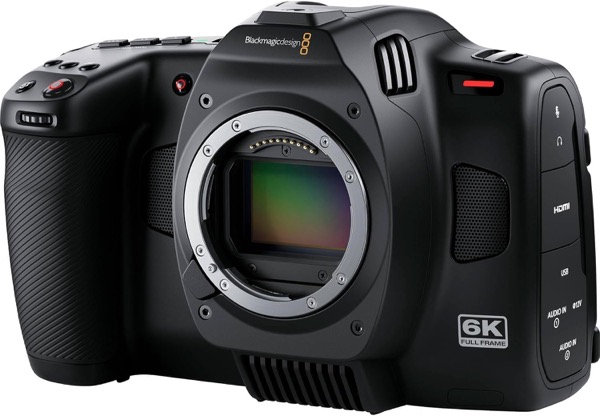
Blackmagic Cinema Camera 6K camera body
Blackmagic Cinema Camera 6K
Good compatibilityTechnical summary of the documented setup characteristics, not a guarantee or a beta-test result. Results depend on the lens, recording mode, audio connection, mounting, and calibration.
✓No in-body stabilizationNo in-body stabilization. Disable the lens IS switch or the camera’s Lens Stabilization option for lenses without a physical switch. Keep gyro stabilization off in DaVinci Resolve when preparing footage for tracking.
✓Audio input availableUse the 3.5 mm stereo input or one of the two mini-XLR mic/line inputs. Select the input and adjust its level in the Audio menu.
✓Mount via accessory threadsUse the top 1/4-20 accessory thread for a short, lightweight assembly. Use a cage or existing rig plate for heavier mounts or extension arms, following the manual’s load guidance.
!MediumCineD measured 18.7 ms in full-frame 6K DCI 17:9 (6048 × 3200), BRAW at 25 fps. This figure does not describe the taller 3:2 open-gate mode. rolling shutter (Low recommendedOmniscient supports rolling shutter. Lower rolling shutter reduces tracking complexity and can improve the chances of a better result.)
Setup details and sources

Reviewed October 25, 2026. Readout measurements apply to the stated recording modes. Bands: Low <10 ms, Medium 10–20 ms, High >20 ms.

  • Stabilization. No in-body stabilization. Disable the lens IS switch or the camera’s Lens Stabilization option for lenses without a physical switch. Keep gyro stabilization off in DaVinci Resolve when preparing footage for tracking. Source ↗
  • Audio connection. Use the 3.5 mm stereo input or one of the two mini-XLR mic/line inputs. Select the input and adjust its level in the Audio menu. Source ↗
  • Mounting. Use the top 1/4-20 accessory thread for a short, lightweight assembly. Use a cage or existing rig plate for heavier mounts or extension arms, following the manual’s load guidance. Source ↗
  • Sensor readout. CineD measured 18.7 ms in full-frame 6K DCI 17:9 (6048 × 3200), BRAW at 25 fps. This figure does not describe the taller 3:2 open-gate mode. Source ↗
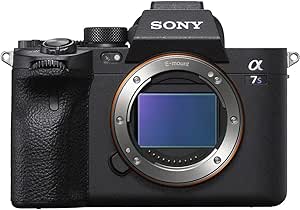
Sony α7S III camera body
Sony α7S III
Perfect compatibilityTechnical summary of the documented setup characteristics, not a guarantee or a beta-test result. Results depend on the lens, recording mode, audio connection, mounting, and calibration.
✓Stabilization can be disabledSet movie SteadyShot to Off and disable any lens-side stabilization.
✓Audio input availableUse the 3.5 mm stereo microphone input. Set Audio Rec Level manually and avoid processing the sync signal.
✓Mount via accessory shoeAttach a cold-shoe phone mount to the accessory shoe. No electrical connection is used. A camera cage is optional if the shoe is free and the mount holds the phone without movement.
✓LowCineD measured 8.7 ms in full-frame UHD 3840 × 2160 at 25 fps. Use the measured mode as the reference, rather than assuming all frame rates share it. rolling shutter (Low recommendedOmniscient supports rolling shutter. Lower rolling shutter reduces tracking complexity and can improve the chances of a better result.)
Setup details and sources

Reviewed October 25, 2026. Readout measurements apply to the stated recording modes. Bands: Low <10 ms, Medium 10–20 ms, High >20 ms.

  • Stabilization. Set movie SteadyShot to Off and disable any lens-side stabilization. Source ↗
  • Audio connection. Use the 3.5 mm stereo microphone input. Set Audio Rec Level manually and avoid processing the sync signal. Source ↗
  • Mounting. Attach a cold-shoe phone mount to the accessory shoe. No electrical connection is used. A camera cage is optional if the shoe is free and the mount holds the phone without movement. Source ↗
  • Sensor readout. CineD measured 8.7 ms in full-frame UHD 3840 × 2160 at 25 fps. Use the measured mode as the reference, rather than assuming all frame rates share it. Source ↗
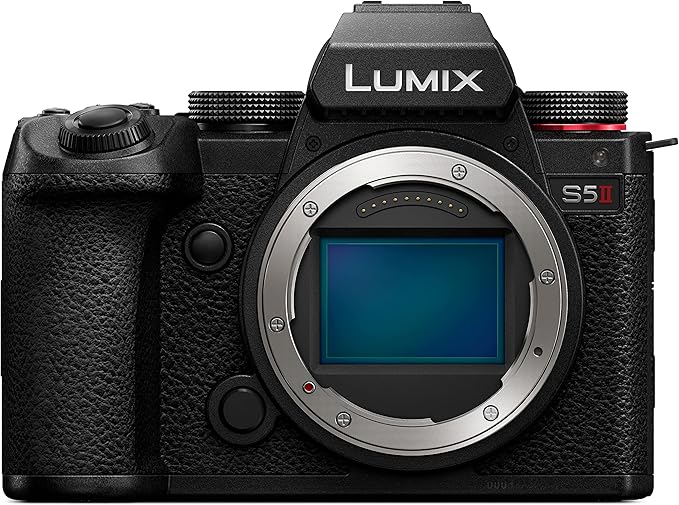
Panasonic LUMIX S5 II camera body
Panasonic LUMIX S5 II
Good compatibilityTechnical summary of the documented setup characteristics, not a guarantee or a beta-test result. Results depend on the lens, recording mode, audio connection, mounting, and calibration.
✓Stabilization can be disabledSet Image Stabilizer → Operation Mode to OFF. With a lens that has an O.I.S. switch, use that switch to turn stabilization OFF. Also set E-Stabilization (Video) and Boost I.S. (Video) to OFF.
✓Audio input availableUse the 3.5 mm microphone input and set the recording level for the sync signal. Disable wind/noise processing. The accessory shoe can remain available for the phone mount.
✓Mount via accessory shoeAttach a cold-shoe phone mount to the accessory shoe. No electrical connection is used. A camera cage is optional if the shoe is free and the mount holds the phone without movement.
!HighCineD measured 22 ms in full-frame UHD and 25.4 ms in 3:2 open gate. APS-C UHD measures 14.3 ms, including 60p. Cropping changes the lens calibration and field of view; calibrate in the mode you will shoot. rolling shutter (Low recommendedOmniscient supports rolling shutter. Lower rolling shutter reduces tracking complexity and can improve the chances of a better result.)
Setup details and sources

Reviewed October 25, 2026. Readout measurements apply to the stated recording modes. Bands: Low <10 ms, Medium 10–20 ms, High >20 ms.

  • Stabilization. Set Image Stabilizer → Operation Mode to OFF. With a lens that has an O.I.S. switch, use that switch to turn stabilization OFF. Also set E-Stabilization (Video) and Boost I.S. (Video) to OFF. Source ↗
  • Audio connection. Use the 3.5 mm microphone input and set the recording level for the sync signal. Disable wind/noise processing. The accessory shoe can remain available for the phone mount. Source ↗
  • Mounting. Attach a cold-shoe phone mount to the accessory shoe. No electrical connection is used. A camera cage is optional if the shoe is free and the mount holds the phone without movement. Source ↗
  • Sensor readout. CineD measured 22 ms in full-frame UHD and 25.4 ms in 3:2 open gate. APS-C UHD measures 14.3 ms, including 60p. Cropping changes the lens calibration and field of view; calibrate in the mode you will shoot. Source ↗
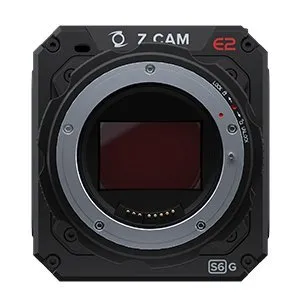
Z CAM E2-S6G camera body
Z CAM E2-S6G
Perfect compatibilityTechnical summary of the documented setup characteristics, not a guarantee or a beta-test result. Results depend on the lens, recording mode, audio connection, mounting, and calibration.
✓No in-body stabilizationNo in-body stabilization. Disable IS on a stabilized lens using its switch, or use a lens without optical stabilization.
✓Audio input availableThe body has a 3.5 mm microphone input and a 5-pin LEMO XLR interface requiring an adapter. Choose the connected input in Audio and set Input Gain manually. Match the cable and signal level to the selected input.
✓Mount via accessory threadsThe E2 Flagship manual, which includes the E2-S6G, shows 1/4-inch screw holes on the top and sides (Introduction, camera diagram). Attach a compatible phone mount directly to a free accessory thread; a cage is optional.
✓Global shutterZ CAM specifies a global-shutter sensor for the E2-S6G. Do not confuse it with the rolling-shutter E2-S6.
Setup details and sources

Reviewed October 25, 2026. Readout measurements apply to the stated recording modes. Bands: Low <10 ms, Medium 10–20 ms, High >20 ms.

  • Stabilization. No in-body stabilization. Disable IS on a stabilized lens using its switch, or use a lens without optical stabilization. Source ↗
  • Audio connection. The body has a 3.5 mm microphone input and a 5-pin LEMO XLR interface requiring an adapter. Choose the connected input in Audio and set Input Gain manually. Match the cable and signal level to the selected input. Source ↗
  • Mounting. The E2 Flagship manual, which includes the E2-S6G, shows 1/4-inch screw holes on the top and sides (Introduction, camera diagram). Attach a compatible phone mount directly to a free accessory thread; a cage is optional. Source ↗
  • Sensor readout. Z CAM specifies a global-shutter sensor for the E2-S6G. Do not confuse it with the rolling-shutter E2-S6. Source ↗
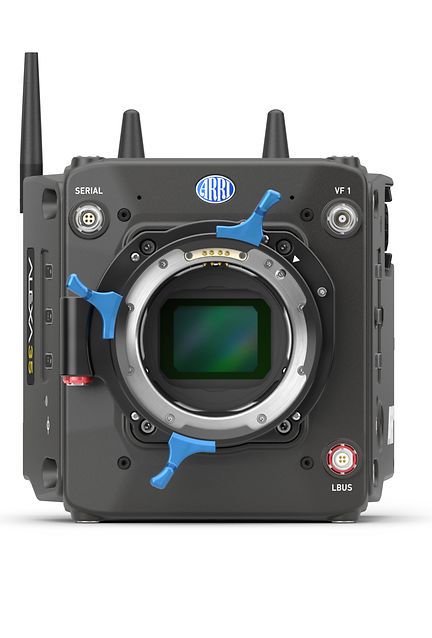
ARRI ALEXA 35 camera body
ARRI ALEXA 35
Good compatibilityTechnical summary of the documented setup characteristics, not a guarantee or a beta-test result. Results depend on the lens, recording mode, audio connection, mounting, and calibration.
✓No in-body stabilizationThis body has no in-body image stabilization to turn off. Disable stabilization on any stabilized lens, and use footage without added stabilization in post.
!Audio input requires 6-pin LEMO line interfaceUse a correctly wired 6-pin LEMO connection to the balanced stereo line input, with a suitable line-level interface. This is not a 3.5 mm microphone input. Match the signal level; do not substitute a cable from another ALEXA model.
✓Mount via accessory threadsUse the camera’s accessory interfaces or an existing ARRI top/side bracket with a compatible phone mount. A separate cage is unnecessary when the rig already provides a rigid attachment.
✓LowCineD measured 7.9 ms in 4.6K 3:2 open gate at 25 fps, 5.7 ms in 4.6K 16:9 at 25 fps, and 7.6 ms in 4K 16:9 from 24–120 fps. rolling shutter (Low recommendedOmniscient supports rolling shutter. Lower rolling shutter reduces tracking complexity and can improve the chances of a better result.)
Setup details and sources

Reviewed October 25, 2026. Readout measurements apply to the stated recording modes. Bands: Low <10 ms, Medium 10–20 ms, High >20 ms.

  • Stabilization. This body has no in-body image stabilization to turn off. Disable stabilization on any stabilized lens, and use footage without added stabilization in post. Source ↗
  • Audio connection. Use a correctly wired 6-pin LEMO connection to the balanced stereo line input, with a suitable line-level interface. This is not a 3.5 mm microphone input. Match the signal level; do not substitute a cable from another ALEXA model. Source ↗
  • Mounting. Use the camera’s accessory interfaces or an existing ARRI top/side bracket with a compatible phone mount. A separate cage is unnecessary when the rig already provides a rigid attachment. Source ↗
  • Sensor readout. CineD measured 7.9 ms in 4.6K 3:2 open gate at 25 fps, 5.7 ms in 4.6K 16:9 at 25 fps, and 7.6 ms in 4K 16:9 from 24–120 fps. Source ↗
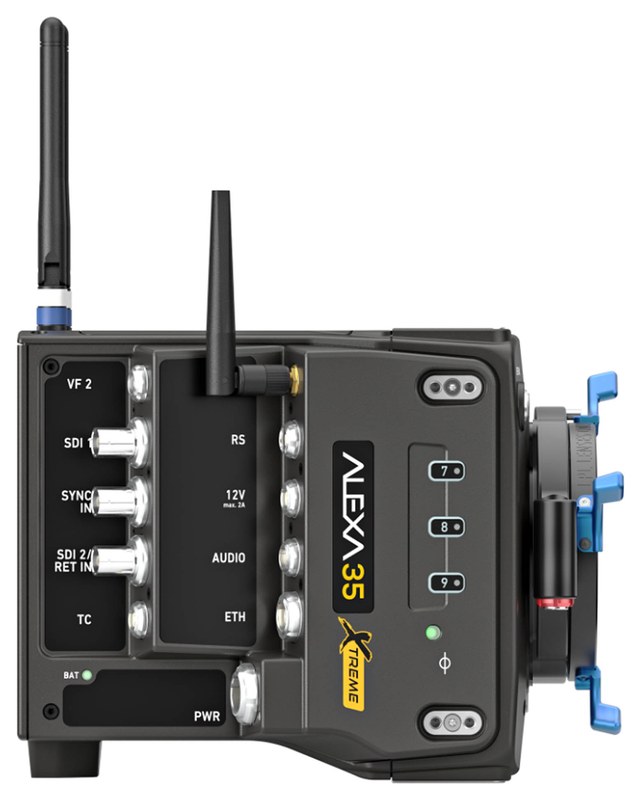
ARRI ALEXA 35 Xtreme camera body
ARRI ALEXA 35 Xtreme
Good compatibilityTechnical summary of the documented setup characteristics, not a guarantee or a beta-test result. Results depend on the lens, recording mode, audio connection, mounting, and calibration.
✓No in-body stabilizationThis body has no in-body image stabilization to turn off. Disable stabilization on any stabilized lens, and use footage without added stabilization in post.
!Audio input requires 6-pin LEMO line interfaceUse a correctly wired 6-pin LEMO connection to the balanced stereo line input, with a suitable line-level interface. This is not a 3.5 mm microphone input. Match the signal level; do not substitute a cable from another ALEXA model.
✓Mount via accessory threadsUse the camera’s accessory interfaces or an existing ARRI top/side bracket with a compatible phone mount. A separate cage is unnecessary when the rig already provides a rigid attachment.
✓LowCineD’s model-specific database reports 7.9 ms in 4.6K open gate at 25 fps in ARRIRAW/ARRICORE and at 120 fps in ARRICORE; 4 ms at 165 fps in ARRICORE. High-speed modes change the readout. rolling shutter (Low recommendedOmniscient supports rolling shutter. Lower rolling shutter reduces tracking complexity and can improve the chances of a better result.)
Setup details and sources

Reviewed October 25, 2026. Readout measurements apply to the stated recording modes. Bands: Low <10 ms, Medium 10–20 ms, High >20 ms.

  • Stabilization. This body has no in-body image stabilization to turn off. Disable stabilization on any stabilized lens, and use footage without added stabilization in post. Source ↗
  • Audio connection. Use a correctly wired 6-pin LEMO connection to the balanced stereo line input, with a suitable line-level interface. This is not a 3.5 mm microphone input. Match the signal level; do not substitute a cable from another ALEXA model. Source ↗
  • Mounting. Use the camera’s accessory interfaces or an existing ARRI top/side bracket with a compatible phone mount. A separate cage is unnecessary when the rig already provides a rigid attachment. Source ↗
  • Sensor readout. CineD’s model-specific database reports 7.9 ms in 4.6K open gate at 25 fps in ARRIRAW/ARRICORE and at 120 fps in ARRICORE; 4 ms at 165 fps in ARRICORE. High-speed modes change the readout. Source ↗
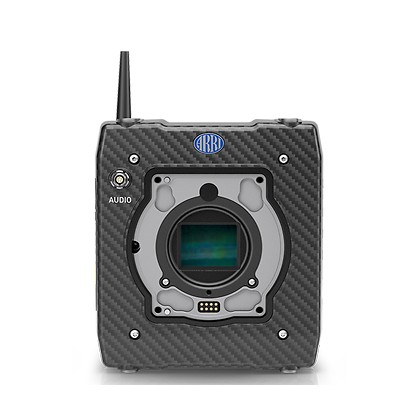
ARRI ALEXA Mini camera body
ARRI ALEXA Mini
Compatibility not ratedTechnical summary of the documented setup characteristics, not a guarantee or a beta-test result. Readout time is not quantified or stabilization requires a mode-specific workflow. See setup details below.
AdoramaUS
✓No in-body stabilizationThis body has no in-body image stabilization to turn off. Disable stabilization on any stabilized lens, and use footage without added stabilization in post.
!Audio input requires 5-pin LEMO line interfaceUse a correctly wired 5-pin LEMO connection to the balanced stereo line input, with a suitable line-level interface. This is not a 3.5 mm microphone input. Match the signal level; do not substitute a cable from another ALEXA model.
✓Mount via accessory threadsUse the camera’s accessory interfaces or an existing ARRI top/side bracket with a compatible phone mount. A separate cage is unnecessary when the rig already provides a rigid attachment.
?Not quantifiedARRI documents an electronic rolling shutter. A model-specific readout measurement was not verified; CineD lists the original Mini as not tested. The Mini LF and ALEXA Classic measurements are not substituted. rolling shutter (Low recommendedOmniscient supports rolling shutter. Lower rolling shutter reduces tracking complexity and can improve the chances of a better result.)
Setup details and sources

Reviewed October 25, 2026. Readout measurements apply to the stated recording modes. Bands: Low <10 ms, Medium 10–20 ms, High >20 ms.

  • Stabilization. This body has no in-body image stabilization to turn off. Disable stabilization on any stabilized lens, and use footage without added stabilization in post. Source ↗
  • Audio connection. Use a correctly wired 5-pin LEMO connection to the balanced stereo line input, with a suitable line-level interface. This is not a 3.5 mm microphone input. Match the signal level; do not substitute a cable from another ALEXA model. Source ↗
  • Mounting. Use the camera’s accessory interfaces or an existing ARRI top/side bracket with a compatible phone mount. A separate cage is unnecessary when the rig already provides a rigid attachment. Source ↗
  • Sensor readout. ARRI documents an electronic rolling shutter. A model-specific readout measurement was not verified; CineD lists the original Mini as not tested. The Mini LF and ALEXA Classic measurements are not substituted. Source ↗
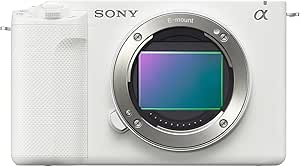
Sony ZV-E1 camera body
Sony ZV-E1
Perfect compatibilityTechnical summary of the documented setup characteristics, not a guarantee or a beta-test result. Results depend on the lens, recording mode, audio connection, mounting, and calibration.
✓Stabilization can be disabledSet movie SteadyShot to Off and disable lens stabilization. Keep automatic framing off so the recorded framing stays consistent with calibration.
✓Audio input availableUse the 3.5 mm microphone input. Set Audio Rec Level manually and avoid voice/wind processing on the sync signal.
✓Mount via accessory shoeAttach a cold-shoe phone mount to the accessory shoe. No electrical connection is used. A camera cage is optional if the shoe is free and the mount holds the phone without movement.
✓LowCineD measured 8.4 ms in full-frame UHD 3840 × 2160 XAVC at 25 fps. This is a ZV-E1 measurement, rather than a value borrowed from the α7S III. rolling shutter (Low recommendedOmniscient supports rolling shutter. Lower rolling shutter reduces tracking complexity and can improve the chances of a better result.)
Setup details and sources

Reviewed October 25, 2026. Readout measurements apply to the stated recording modes. Bands: Low <10 ms, Medium 10–20 ms, High >20 ms.

  • Stabilization. Set movie SteadyShot to Off and disable lens stabilization. Keep automatic framing off so the recorded framing stays consistent with calibration. Source ↗
  • Audio connection. Use the 3.5 mm microphone input. Set Audio Rec Level manually and avoid voice/wind processing on the sync signal. Source ↗
  • Mounting. Attach a cold-shoe phone mount to the accessory shoe. No electrical connection is used. A camera cage is optional if the shoe is free and the mount holds the phone without movement. Source ↗
  • Sensor readout. CineD measured 8.4 ms in full-frame UHD 3840 × 2160 XAVC at 25 fps. This is a ZV-E1 measurement, rather than a value borrowed from the α7S III. Source ↗
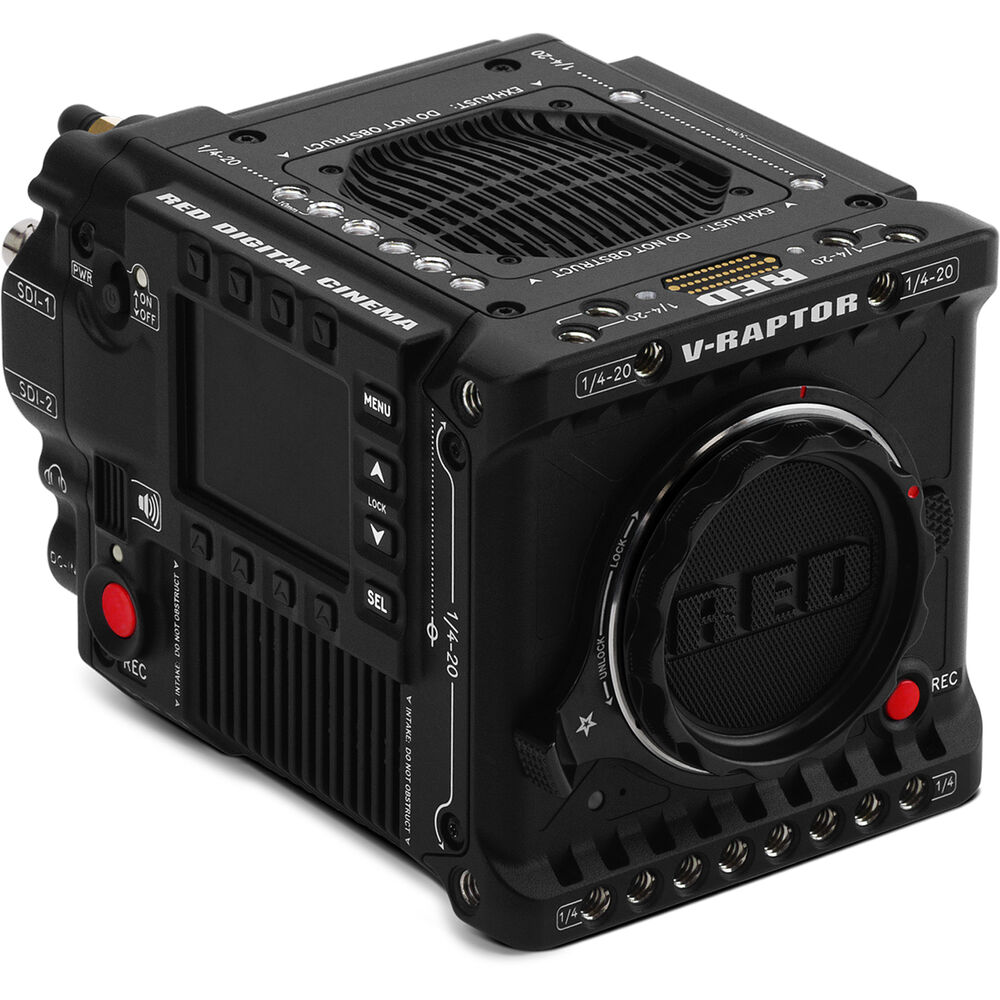
RED V-RAPTOR VV camera body
RED V-RAPTOR VV
Good compatibilityTechnical summary of the documented setup characteristics, not a guarantee or a beta-test result. Results depend on the lens, recording mode, audio connection, mounting, and calibration.
✓No in-body stabilizationThis body has no in-body image stabilization to turn off. Disable stabilization on any stabilized lens, and use footage without added stabilization in post.
!Audio input requires 5-pin ODU cableUse a cable designed for the V-RAPTOR’s 5-pin 00B ODU audio port. It accepts two channels at mic or line level. Select the appropriate level and keep phantom power off for a phone sync feed.
✓Mount via accessory threadsThe V-RAPTOR VV has 1/4-20 accessory holes on the top, front and sides. Attach a compatible phone mount directly to the body or an existing rig plate. No separate camera cage is required.
✓LowCineD measured 8 ms in full-frame 8K 17:9 at 25 fps and 6 ms in 6K Super 35. This original V-RAPTOR VV has a rolling shutter; the V-RAPTOR [X] is a different model. rolling shutter (Low recommendedOmniscient supports rolling shutter. Lower rolling shutter reduces tracking complexity and can improve the chances of a better result.)
Setup details and sources

Reviewed October 25, 2026. Readout measurements apply to the stated recording modes. Bands: Low <10 ms, Medium 10–20 ms, High >20 ms.

  • Stabilization. This body has no in-body image stabilization to turn off. Disable stabilization on any stabilized lens, and use footage without added stabilization in post. Source ↗
  • Audio connection. Use a cable designed for the V-RAPTOR’s 5-pin 00B ODU audio port. It accepts two channels at mic or line level. Select the appropriate level and keep phantom power off for a phone sync feed. Source ↗
  • Mounting. The V-RAPTOR VV has 1/4-20 accessory holes on the top, front and sides. Attach a compatible phone mount directly to the body or an existing rig plate. No separate camera cage is required. Source ↗
  • Sensor readout. CineD measured 8 ms in full-frame 8K 17:9 at 25 fps and 6 ms in 6K Super 35. This original V-RAPTOR VV has a rolling shutter; the V-RAPTOR [X] is a different model. Source ↗

The correspondence does not confirm that the test clips came from the V-RAPTOR VV rather than another RED body.
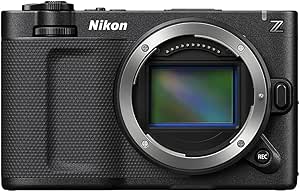
Nikon ZR camera body
Nikon ZR
Perfect compatibilityTechnical summary of the documented setup characteristics, not a guarantee or a beta-test result. Results depend on the lens, recording mode, audio connection, mounting, and calibration.
AmazonUSFRJP
✓Stabilization can be disabledIn the video menu, set Vibration reduction to Off and Electronic VR to OFF. Electronic VR is already fixed OFF in the RAW recording formats; check optical/body VR separately.
✓Audio input availableUse the 3.5 mm external microphone/line input, choose the correct Audio input selection and set its sensitivity. This is separate from the digital accessory shoe and the similar-looking remote connector.
✓Mount via accessory shoeThe digital accessory shoe uses the ISO 518 hot-shoe format. Use a compatible cold-shoe phone mount with a secure mechanical fit; no digital or electrical connection is needed. Use a cage only if the shoe is occupied or you need another mounting position.
✓LowCineD measured 9.4 ms in full-frame 6K REDCODE RAW NE and 6.3 ms in DX / APS-C mode. Calibrate using the same image area as the take. rolling shutter (Low recommendedOmniscient supports rolling shutter. Lower rolling shutter reduces tracking complexity and can improve the chances of a better result.)
Setup details and sources

Reviewed October 25, 2026. Readout measurements apply to the stated recording modes. Bands: Low <10 ms, Medium 10–20 ms, High >20 ms.

  • Stabilization. In the video menu, set Vibration reduction to Off and Electronic VR to OFF. Electronic VR is already fixed OFF in the RAW recording formats; check optical/body VR separately. Source ↗
  • Audio connection. Use the 3.5 mm external microphone/line input, choose the correct Audio input selection and set its sensitivity. This is separate from the digital accessory shoe and the similar-looking remote connector. Source ↗
  • Mounting. The digital accessory shoe uses the ISO 518 hot-shoe format. Use a compatible cold-shoe phone mount with a secure mechanical fit; no digital or electrical connection is needed. Use a cage only if the shoe is occupied or you need another mounting position. Source ↗
  • Sensor readout. CineD measured 9.4 ms in full-frame 6K REDCODE RAW NE and 6.3 ms in DX / APS-C mode. Calibrate using the same image area as the take. Source ↗
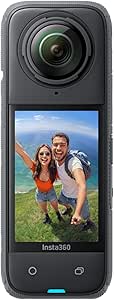
Insta360 X4 camera body
Insta360 X4
Compatibility not ratedTechnical summary of the documented setup characteristics, not a guarantee or a beta-test result. Readout time is not quantified or stabilization requires a mode-specific workflow. See setup details below.
!Stabilization depends on recording modeSingle-Lens Video applies FlowState in-camera and it cannot be switched off there. FreeFrame and 360 modes allow stabilization to be disabled when exporting in the app or Studio. Also disable Horizon Lock. This documents the controls; it does not confirm Mounted support for 360 or reframed footage.
!Audio input requires X4 Mic AdapterUse the dedicated X4 Mic Adapter for a 3.5 mm microphone connection. X2/X3 adapters are not compatible. An available input does not establish Omniscient sync compatibility.
✓Mount via accessory threadsThe X4 has a bottom 1/4-inch mounting point. Use a rigid bracket to attach it to the camera rig; keep the assembly short and prevent rotation.
?Not quantifiedNo reliable readout-time measurement was found for the exact X4 recording modes. A 360 capture/reframing workflow also needs validation beyond sensor readout; no general Mounted compatibility rating is assigned. rolling shutter (Low recommendedOmniscient supports rolling shutter. Lower rolling shutter reduces tracking complexity and can improve the chances of a better result.)
Setup details and sources

Reviewed October 25, 2026. Readout measurements apply to the stated recording modes. Bands: Low <10 ms, Medium 10–20 ms, High >20 ms.

  • Stabilization. Single-Lens Video applies FlowState in-camera and it cannot be switched off there. FreeFrame and 360 modes allow stabilization to be disabled when exporting in the app or Studio. Also disable Horizon Lock. This documents the controls; it does not confirm Mounted support for 360 or reframed footage. Source ↗
  • Audio connection. Use the dedicated X4 Mic Adapter for a 3.5 mm microphone connection. X2/X3 adapters are not compatible. An available input does not establish Omniscient sync compatibility. Source ↗
  • Mounting. The X4 has a bottom 1/4-inch mounting point. Use a rigid bracket to attach it to the camera rig; keep the assembly short and prevent rotation. Source ↗
  • Sensor readout. No reliable readout-time measurement was found for the exact X4 recording modes. A 360 capture/reframing workflow also needs validation beyond sensor readout; no general Mounted compatibility rating is assigned. Source ↗

Some links may be affiliate links. If you purchase through them, we may earn a commission that supports Omniscient.