Mounted Workflow
Shoot with any camera, your shots are ready in minutes.Your iPhone handles the 3D tracking and scanning.
What you need
iPhone or iPad
Install Omniscient and keep the device charged, cool, and set to Do Not Disturb.
Camera
Use a DSLR or cinema camera with stabilization disabled, no zooming, and audio processing turned off.
Rigid mount
Attach the iPhone firmly so it cannot shift or vibrate independently from the camera.
Sync audio path
Use wired connection, or validate wireless connection with the ultrasonic compatibility test.
Overview
Prepare the rig
Mount the device, align it with the camera, and connect the sync audio path.
Calibrate once
Record the calibration sequence against a flat, detailed target before shooting.
Capture takes
Record shots on your camera without moving the mount.
Process files
Drop the iOS exports and camera footage into Omniscient Desktop, then export the result.
1. Prepare the rig
- Mount the iPhone firmly to your camera rig.
- Point the iPhone and camera in the same direction.
- Connect the iPhone audio output to your camera audio input, or use wireless sync after testing compatibility.
- Turn off camera stabilization, zoom changes, wind reduction, noise reduction, auto gain, and voice-focused audio modes.
- Put the iPhone in Do Not Disturb and prevent interruptions from calls, alarms, timers, or audio playback.
2. Choose the calibration target
Calibration quality depends heavily on the target. Choose a detailed surface and keep it in view throughout the calibration process.
Flat
Use planar surfaces that fill most of the frame.
Detailed
Look for texture, edges, images, drawings or non repetitive patterns.
Close
Start as close as practical, ideally about 1 m away.
Perspective
View the surface at a slight angle so edges show depth.
Still
Avoid moving subjects, reflections, and room-wide views.
Good examples
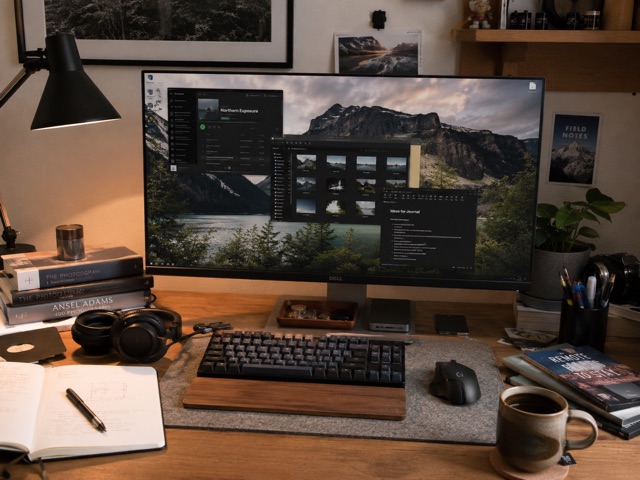
Desk with visible screen content
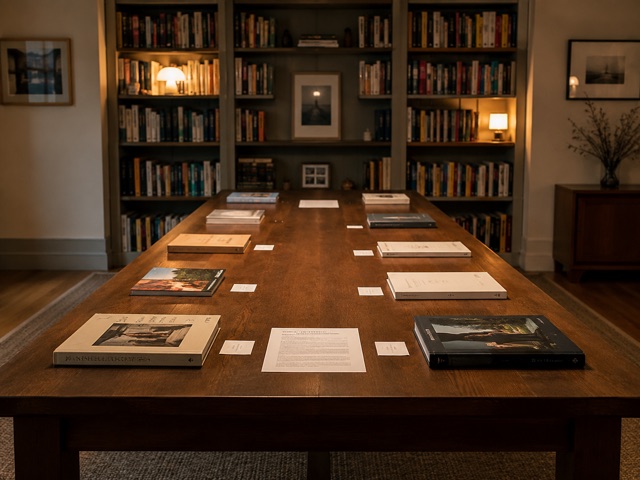
Books, documents, and cards on a table
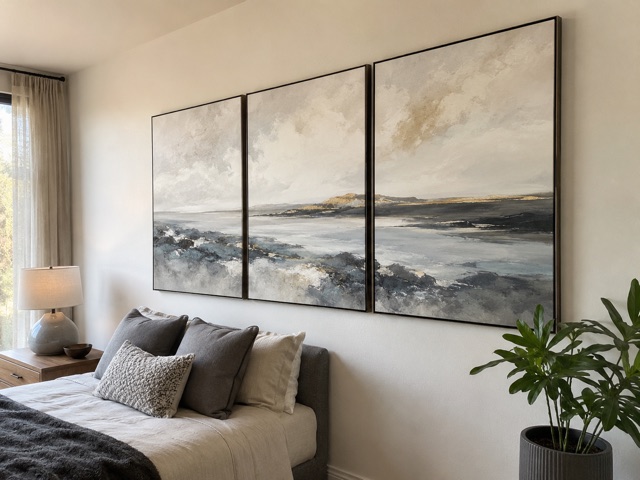
Framed art, canvas, or wall print

Human-sized street mural

Printed T-shirts and tote bag on a sofa
Avoid

Blank walls

Reflective surfaces
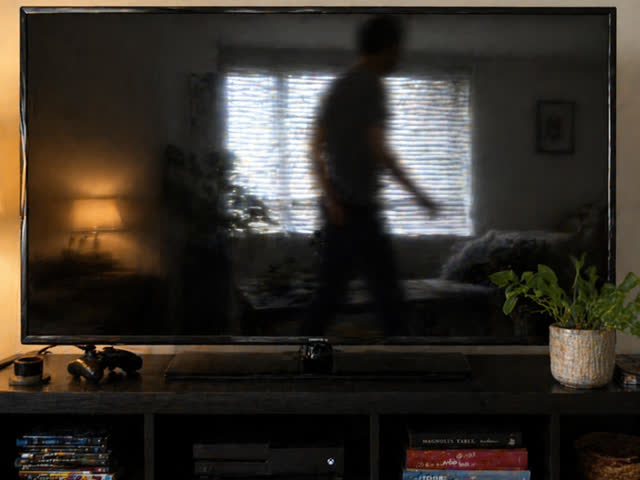
Moving objects
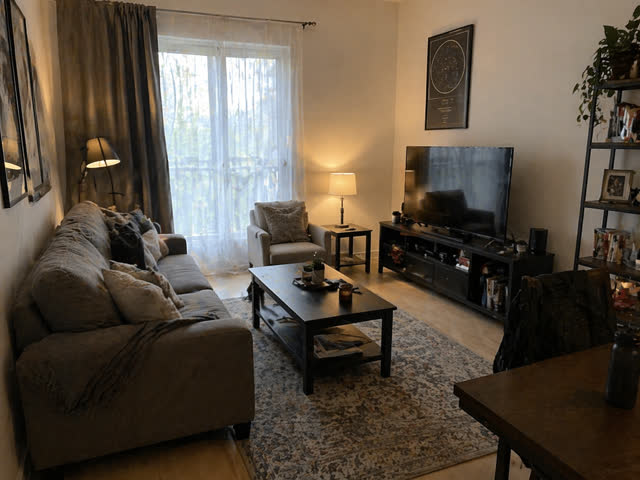
Full-room depth
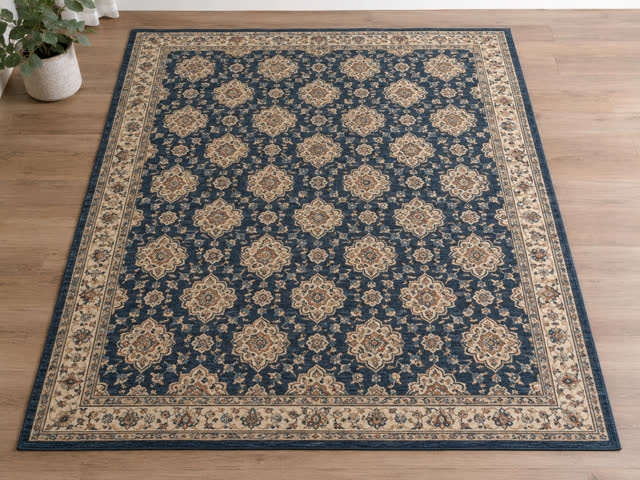
Repetitive patterns
3. Run calibration
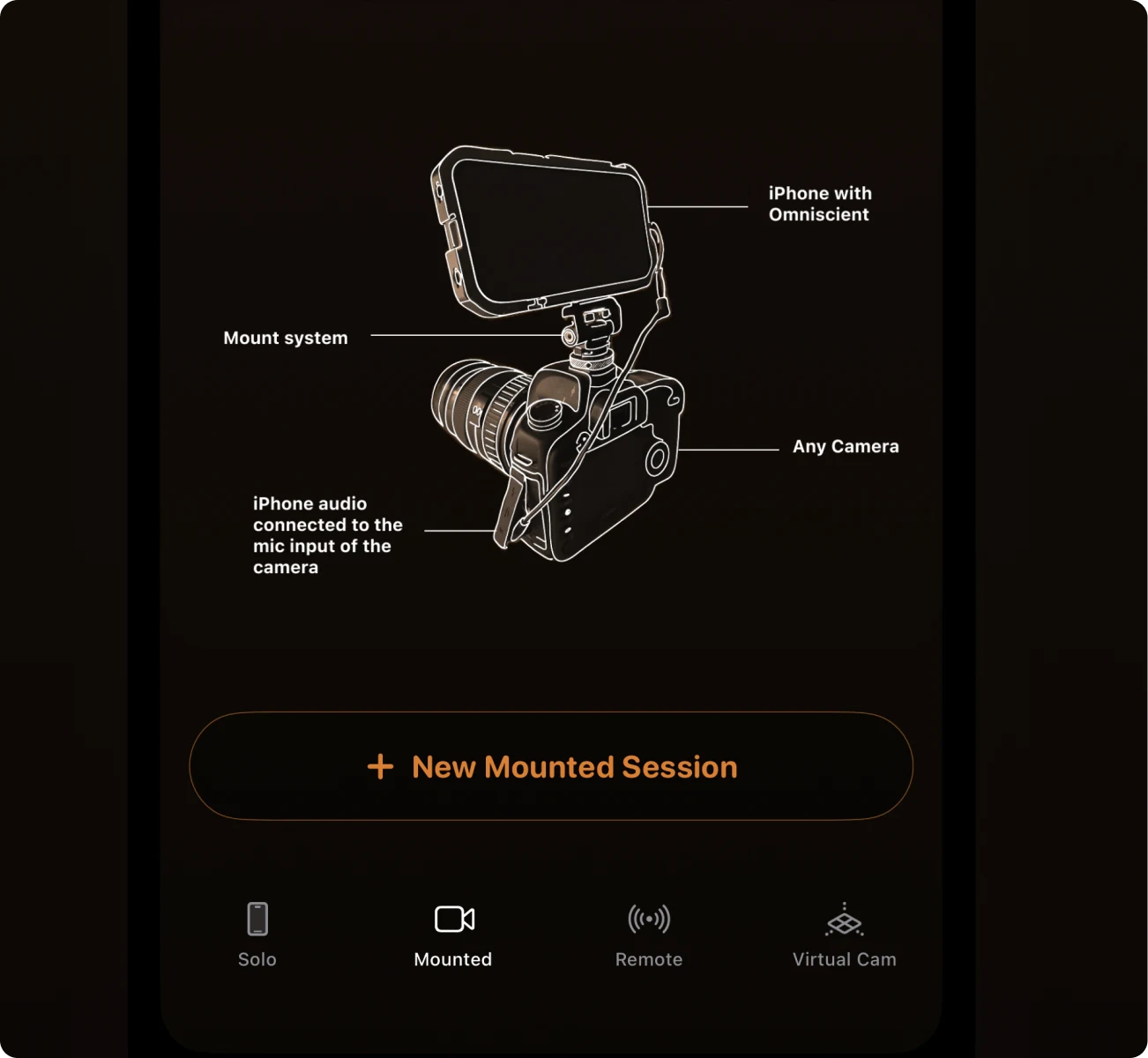
Open Mounted
Open the Mounted tab in the Omniscient iOS app, then tap New Mounted Session.
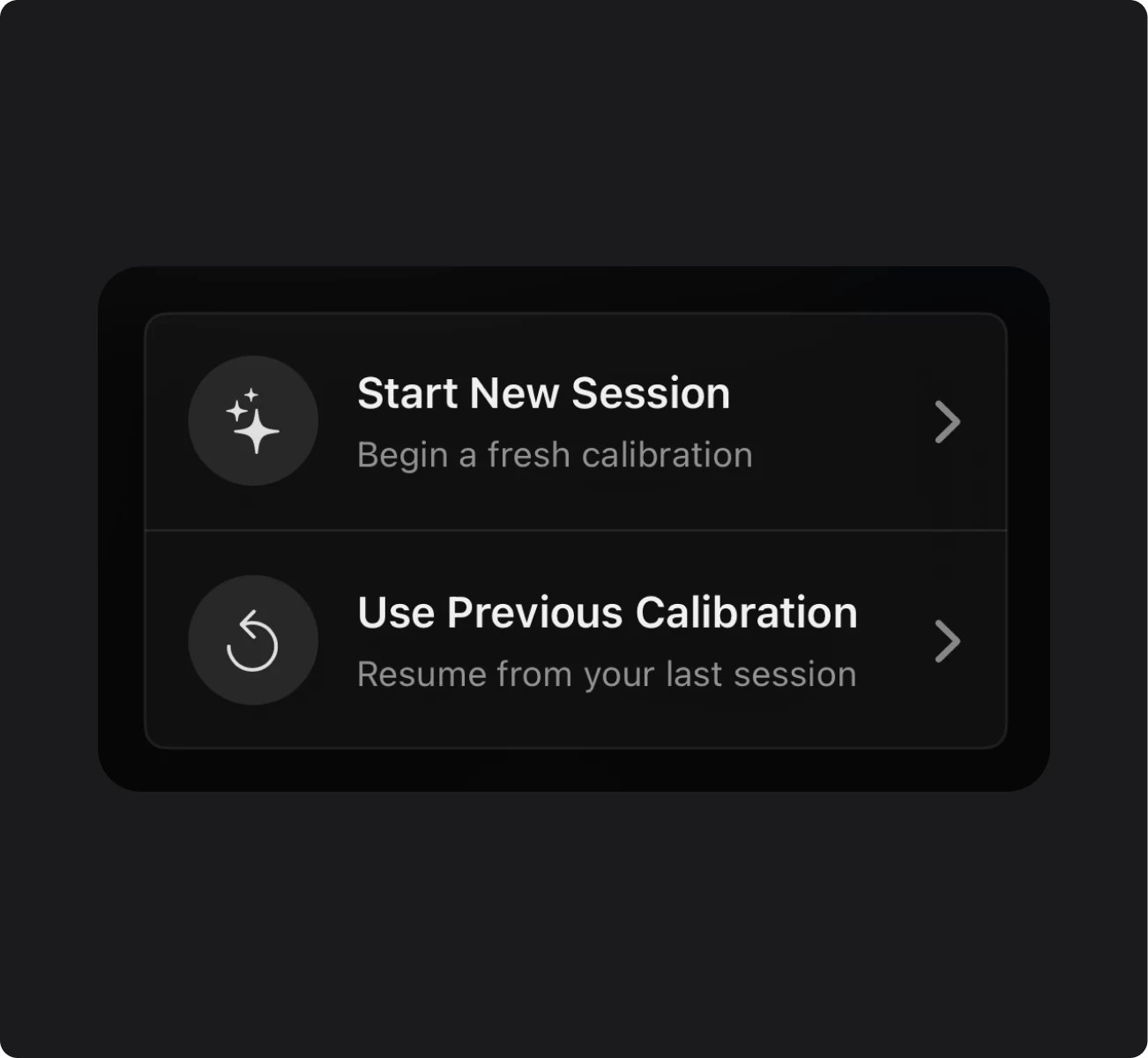
Create a session
Tap Start New Session, or use a previous calibration if the iPhone has not moved relative to the camera.
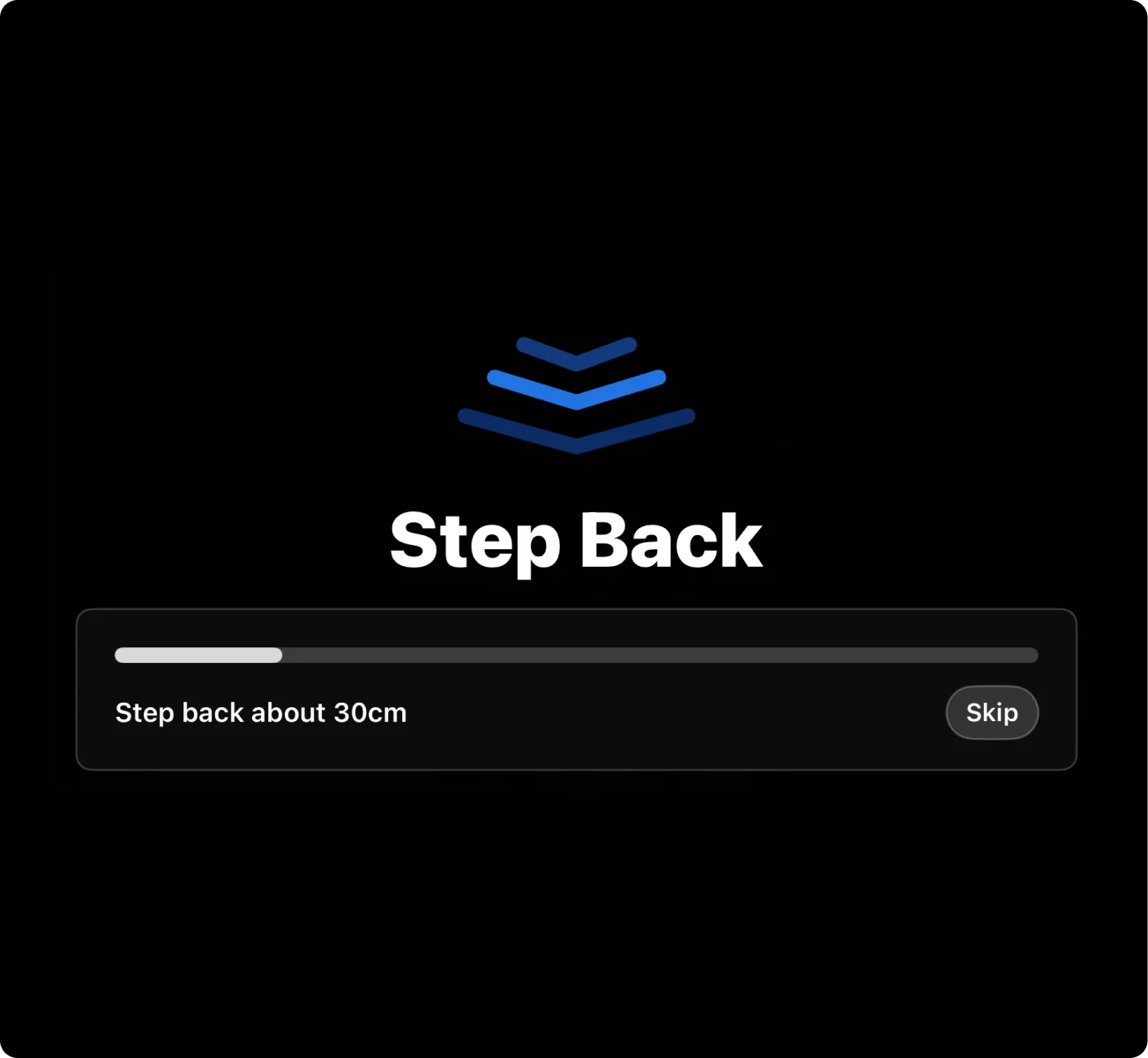
Follow the on-screen instructions
Frame the target, tap Start Calibration, start recording on your camera, then follow the on-screen steps.
4. Capture shots
- Scan the environment when prompted.
- Start the session on the iPhone.
- Start recording on the external camera and capture as many shots as you need.
- End the session on the iPhone when finished shooting.
Disable all optical and sensor stabilization before recording.
Do not zoom during a shot. Keep the focal length fixed for the entire take.
5. Export and process
Export the Omniscient folders from the iPhone and the matching camera footage to your computer.
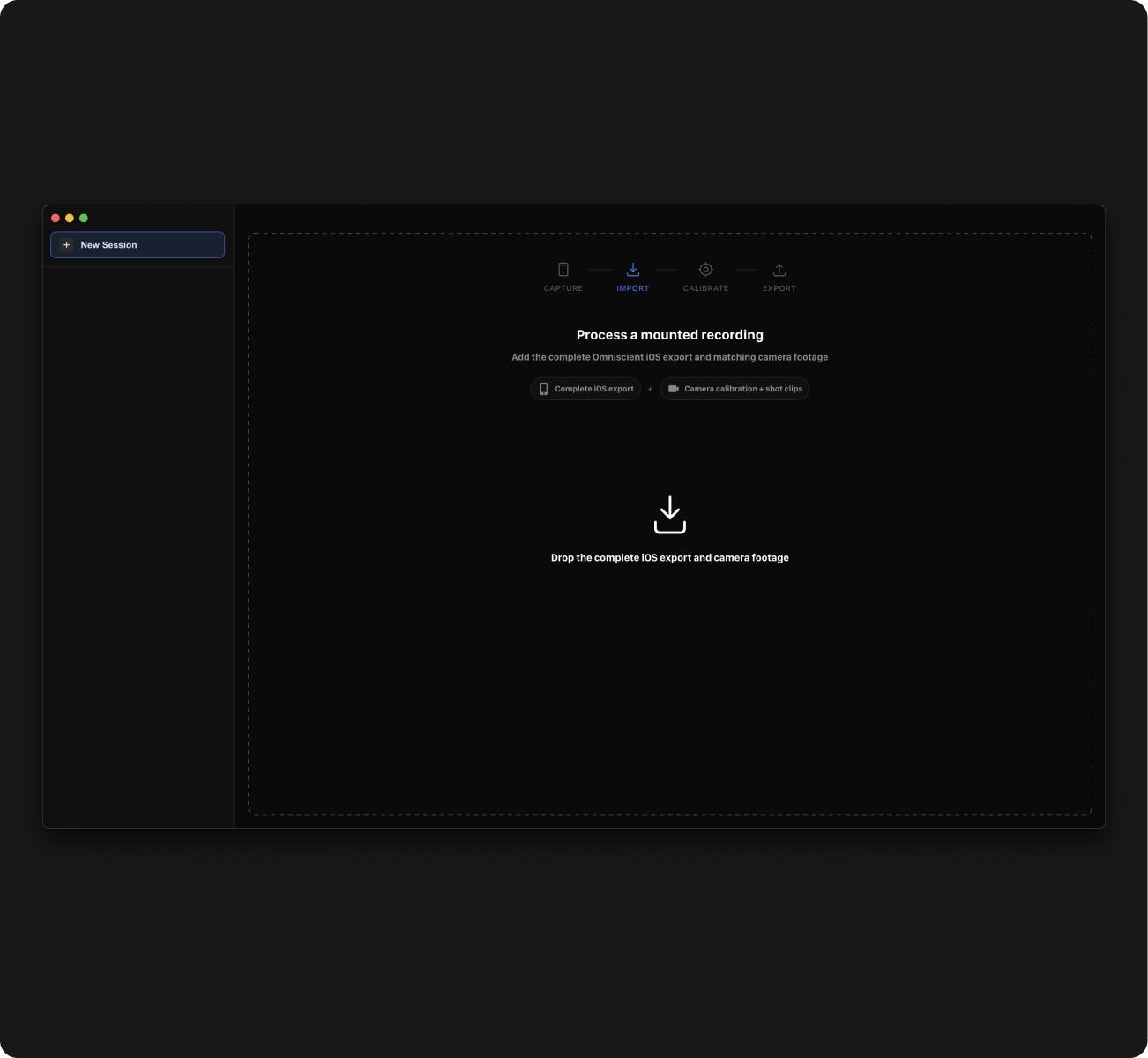
Install Desktop App
Follow the instructions you received when signing up to install Omniscient Desktop, then open it.
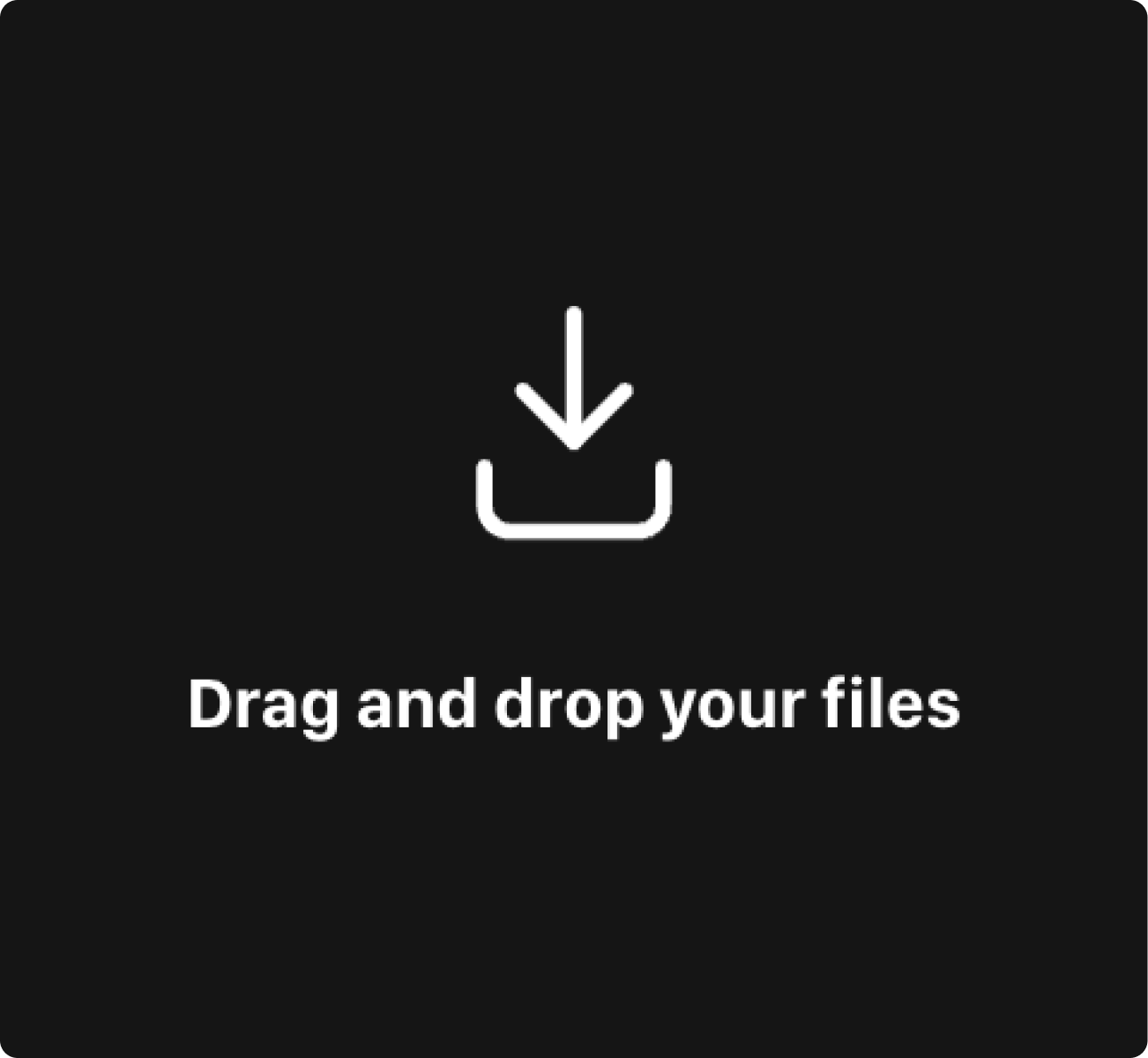
Import Files
Drop in camera files and all folders exported from the Omniscient iOS app.
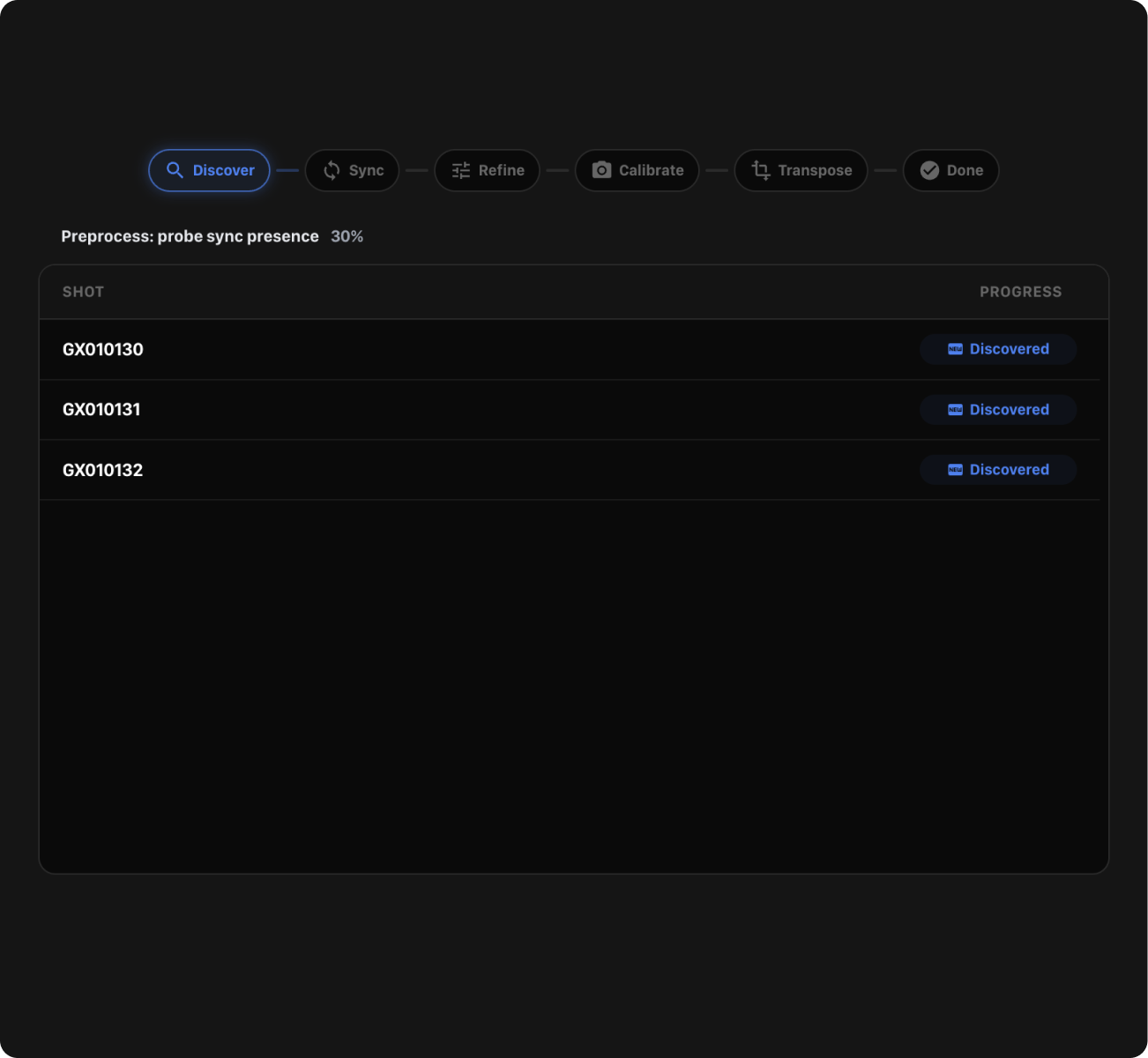
Process
Press Next and wait for processing to complete.
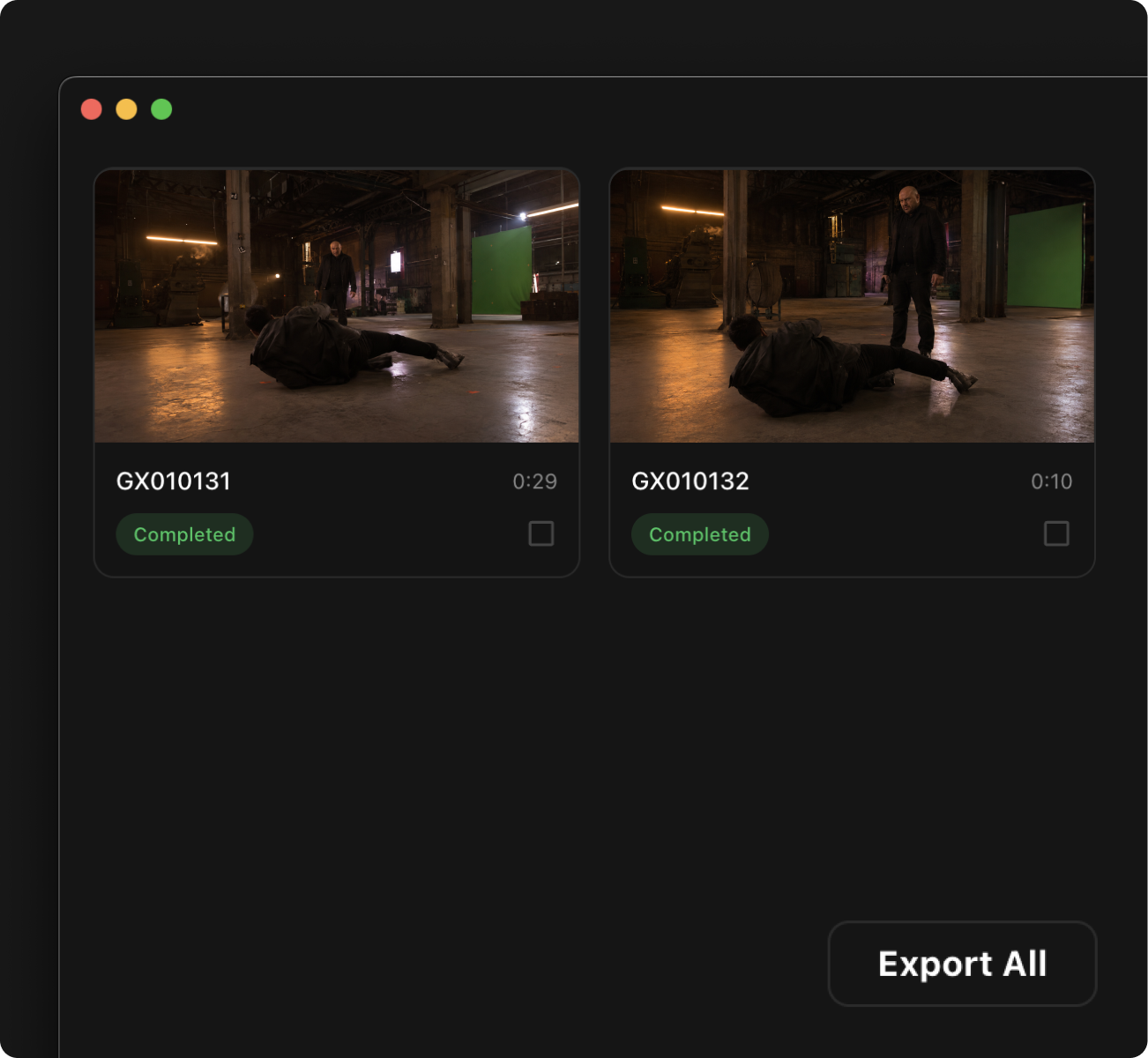
Review & Export
Once processed, review the shot and export it to your 3D software.
6. Import into your VFX software
Import the processed shot into your preferred VFX or 3D tool.
Follow the integration guides for Blender, Unreal Engine, Unity, and more.
After Effects and Apple Motion are currently not supported with the Mounted workflow.
Troubleshooting
I see drift between tracking data and footage
Drift is usually caused by stabilization, sync, calibration, or mount stability issues. Verify that:
- Optical and sensor stabilization were fully disabled during the shot.
- The focal length remained fixed for the entire take.
- The calibration target was flat, detailed, close, and still.
- The mount remained rigid after calibration.
- The camera recorded a clean sync signal without audio processing.
Matching shots fails in Desktop
Disable camera audio processing such as noise reduction, wind reduction, auto gain, and voice modes.
If you use wireless connection, avoid high-frequency noise and run the Ultrasonic Compatibility Test with the same camera and audio path.
My iPhone is getting hot
Improve airflow, avoid direct sunlight, and use an external fan if needed. Excessive heat can reduce tracking reliability.
FAQ
Can I use an iPad instead of an iPhone?
Yes, but an iPad is harder to mount rigidly. Use it only if the mount is stable enough for the iPad to move exactly with the camera.
For Beacon sync, do I need to take my device off silent mode?
No. Beacon sync works even when the device is in silent mode.