Preview & Edit
Advanced player
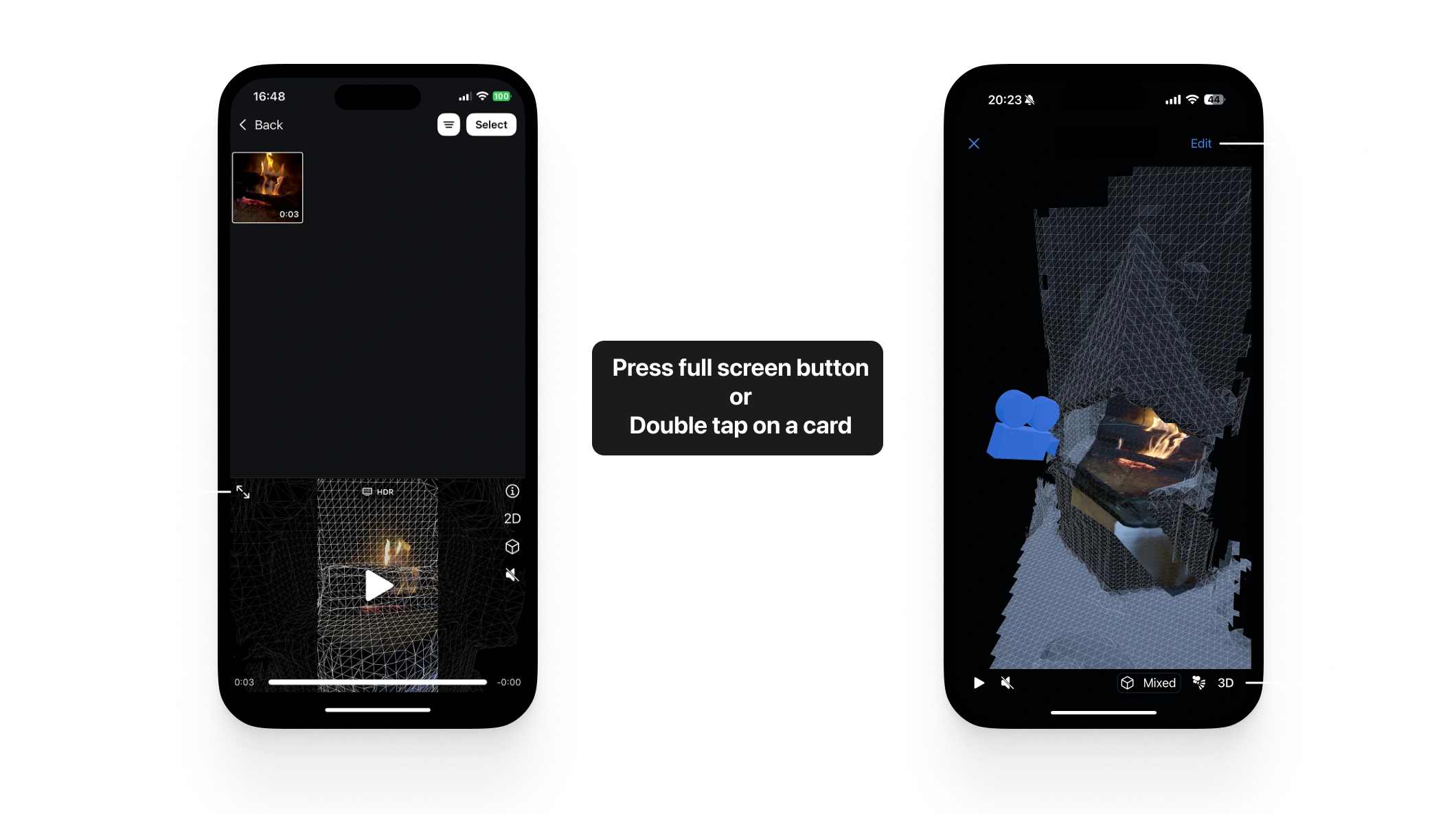
Preview shots with the scan overlaid on the video, and use the 3D view to check the scan and camera animation.
-
Full screen: Tap the full-screen button on the small player, or double-tap a card. Full screen gives you more controls, including trimming.
-
Scene controls: In full screen, use the controls at the bottom right to switch between 2D and 3D, change the visualization style, and show or hide the mesh or plate.
To quickly open a shot in full-screen, double tap on any card.
Editing
Trimming
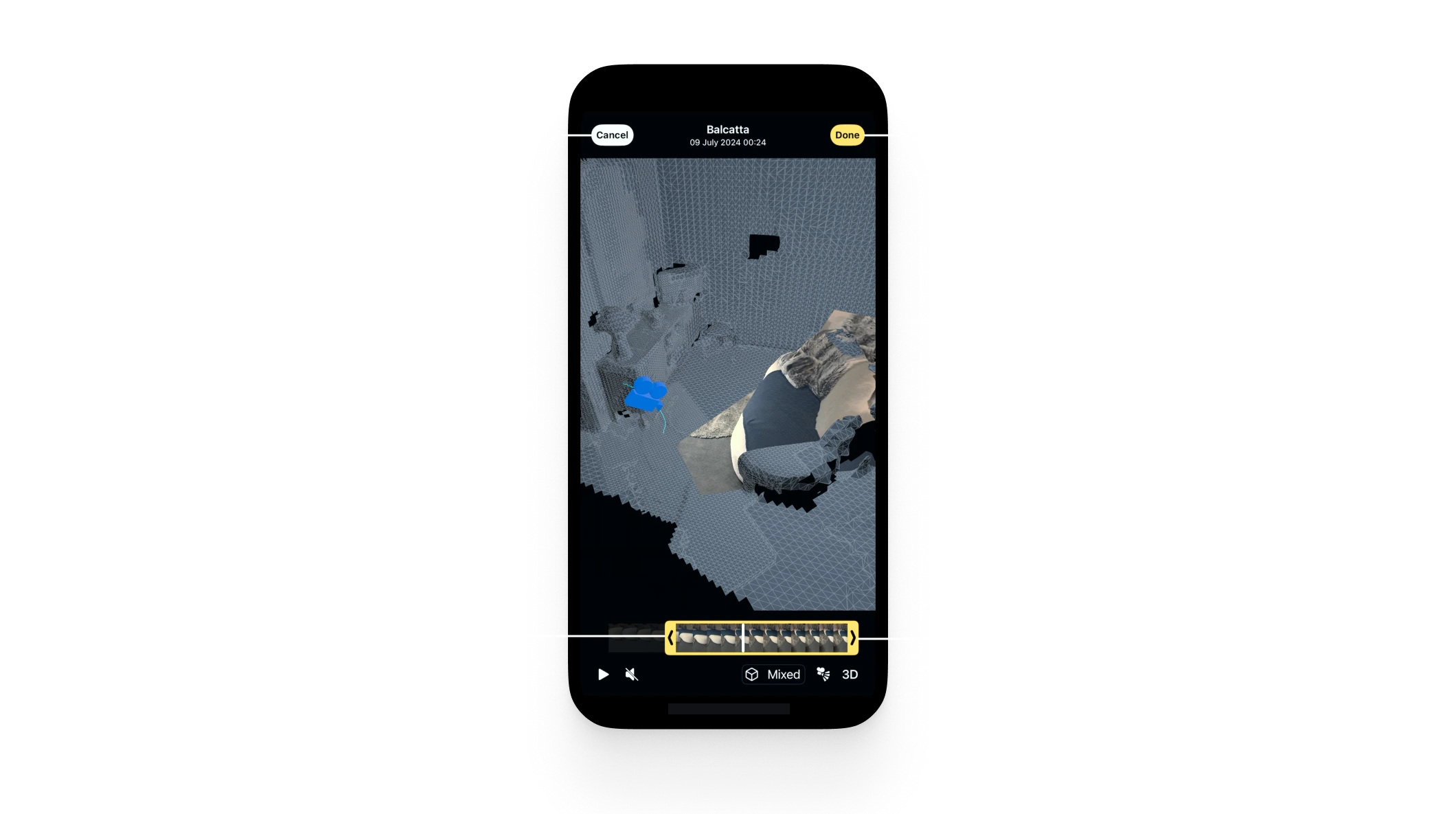
Trimming both the video and the camera used to be tedious. Omniscient includes a simple workflow:
-
Edit a Shot: In full-screen preview, tap Edit (top right) to open trimming.
-
Trim: Adjust the start and end points along the timeline to keep the region you need.
-
Confirm: Tap Done to save. The video updates to the selected region.
Trimming is applied on export, so you can revert if needed.
Post-stabilization
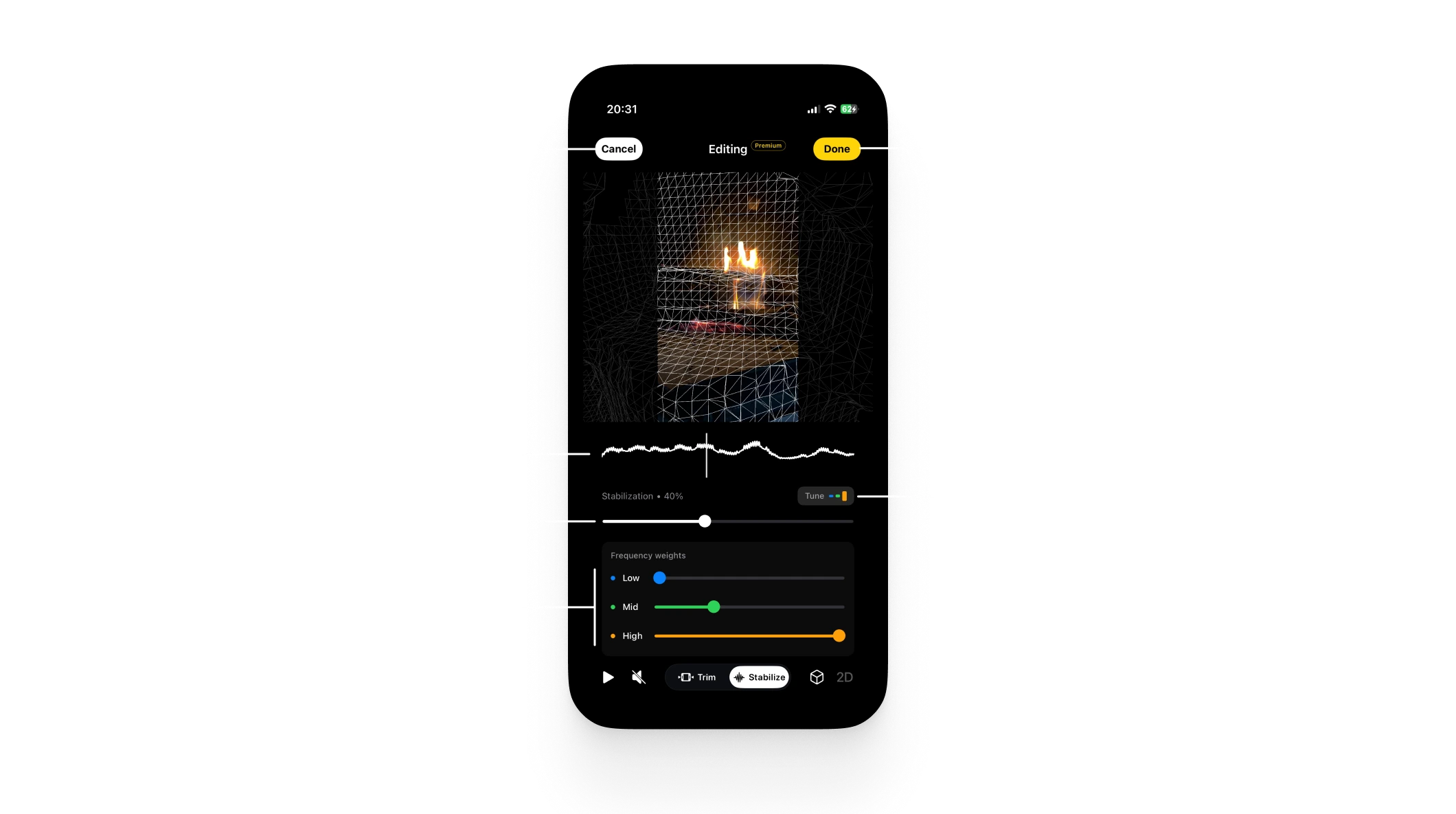
Stabilize handheld or shaky footage directly in Omniscient. The editing tools include a stabilization slider that helps create smoother and more professional looking shots.
-
Edit a Shot: Open your clip in full screen preview, tap Edit in the top right corner, then select the Stabilize mode.
-
Stabilize: Move the slider to set the stabilization intensity. For finer control, you can tune the frequency settings to reduce specific types of motion.
-
Confirm: Tap Done to save.
Stabilization is applied on export, so you can revert if needed.